Move from V1 to V2 (Beta)
Start a new V2 video, keep existing V1 projects available, and understand which parts of the creation and revision workflow have changed.
Written By Anish Muppalaneni
Last updated About 2 hours ago
Read before this
Moving to V2 means choosing a new experience for new videos. Your existing V1 conversations stay in V1, so you can return to them without recreating their content.
Before you start
Sign in and have enough credits for the video you want to create. Keep a copy of your brief and identify the source files you want to use. V2 is in Beta; use V1 when you need a workflow described specifically in a V1 guide.
Start your first V2 video
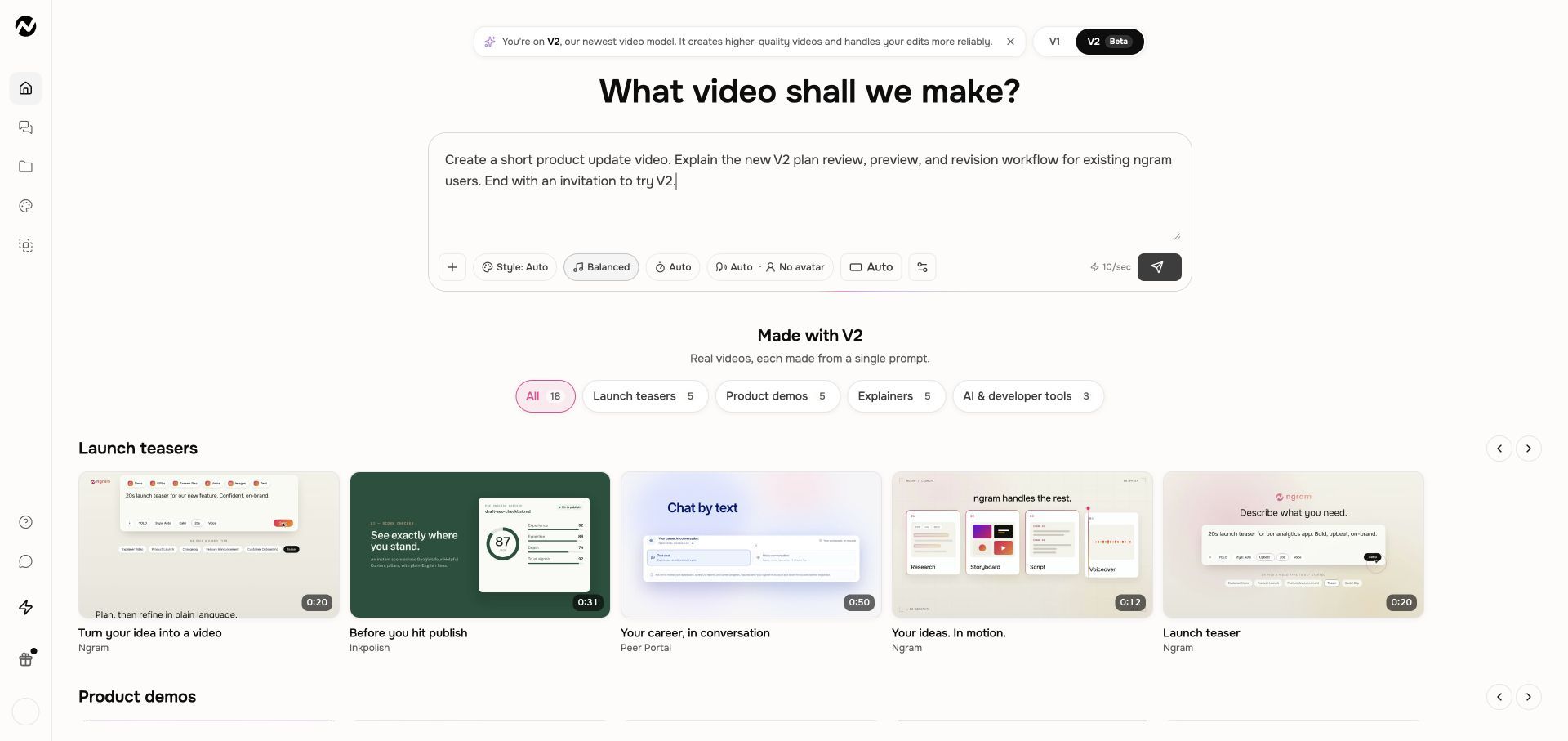
- Open Home and choose V2, marked Beta, above the prompt.
- Describe the audience, message, and desired action. Add source files with Add files when needed.
- Review the duration, aspect ratio, narration, and other settings shown in the composer.
- Choose Create video.
- Read Script and Production details in the proposed plan. Choose Request changes if the direction needs work.
- Choose Approve plan when you are ready for production.
- Watch the preview, then use chat or Make changes for a revision.
- Choose the version you want and Download. Wait for Preparing download to finish if a final MP4 needs to be prepared.
You should see a playable video in the conversation. The conversation is the place to return for the plan, change requests, and available versions.
What changes from V1
V2 centers revisions on the conversation and Make changes. Do not look for every V1 timeline or direct-editing control in V2. The Versions menu lets you inspect and download earlier outputs; selecting a version is not the same as restoring it.
New V2 videos start with captions off. Turn them on when a caption track is available if you want captions in the download.
Return to existing work
- Open the saved V1 conversation from your existing projects or recents.
- Continue editing it in V1.
- To start another new video in V1, return to Home and choose V1.
Changing Default experience in Settings → Preferences controls where new videos start. It does not move old projects between experiences. Some tool and template links still open V1.
If something looks different
Check whether you are in a V1 conversation or a V2 conversation before following an editing guide. When moving an unsent brief between experiences, review its sources and settings before sending; settings do not necessarily match one for one.
If V2 is waiting at a plan, choose Request changes or Approve plan. If it is preparing a download, keep that request open rather than starting a second generation. For a failed or interrupted run, reopen the same conversation and check its last message before retrying.
Recover a failed or interrupted job
Keep going
- Create your first video — Follow the complete V2 creation path.
- Revise a video — Make a specific change in the conversation.
- Download your video — Prepare and save the selected result.
Start your next video in V2
Review the direction before production, then refine the video in the same conversation.