Download and export a video
Download the selected V2 result as an MP4, or follow the V1 export options for an existing V1 project.
Written By Rishikesh from ngram
Last updated 9 days ago
Read before this
Download the selected V2 result as an MP4 after reviewing it. A playable preview can exist before the final download file has been rendered.
Before downloading from V2
Open the completed V2 conversation. Select the output you want in Versions when multiple outputs exist, and check the caption setting before downloading.
Download a V2 video
- Play the selected output and check the result.
- Choose Download.
- If Preparing download appears, wait while ngram prepares the final MP4.
- Save the file when the browser starts the download.
- Open the downloaded file and confirm its version, sound, and captions.
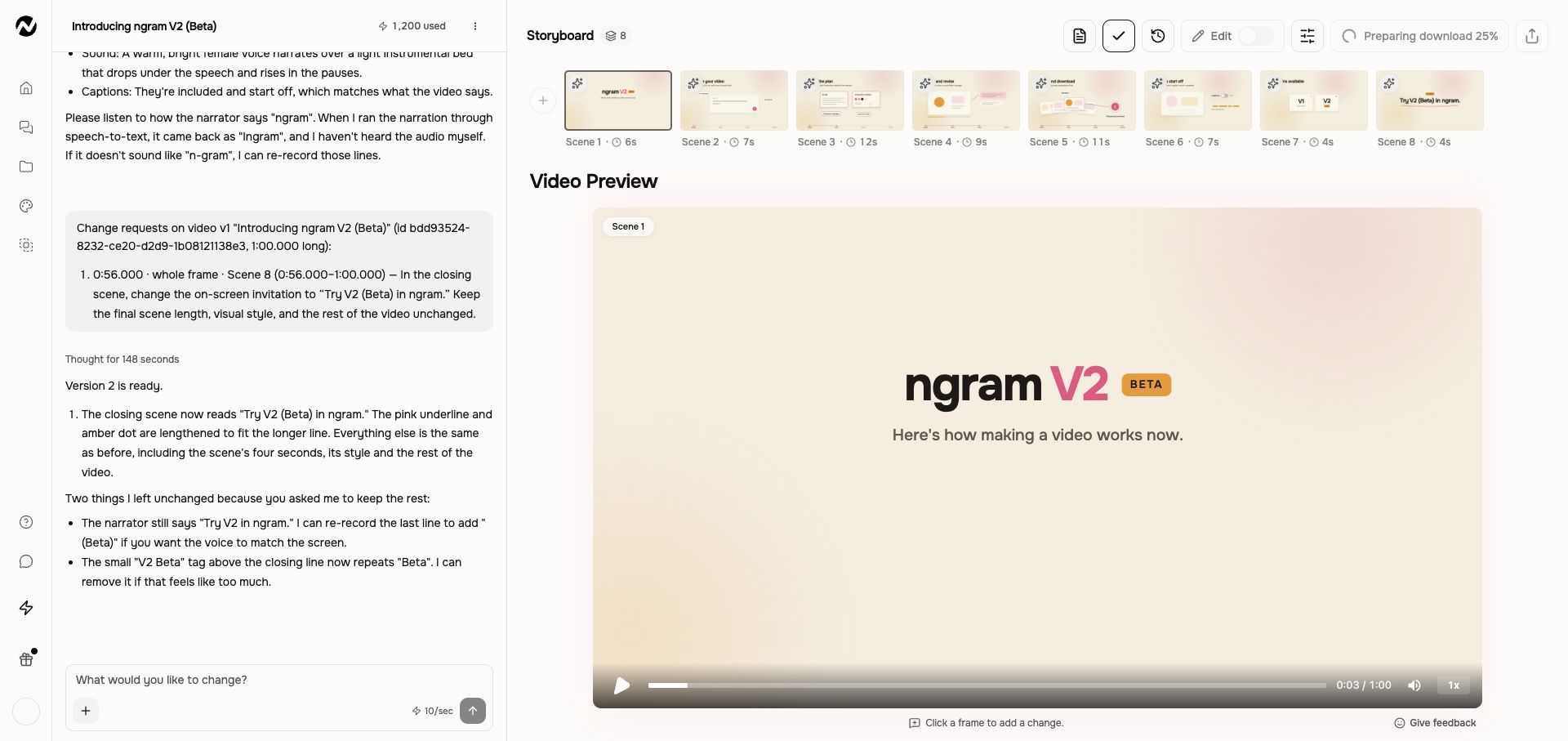
If the download is not ready
Keep the conversation open while the file is prepared. A preview is not a failed export simply because the MP4 is not ready yet. If an error appears, preserve the conversation and read the message before retrying. Do not start a new video to recover a download.
The GIF and quality-selector instructions below describe eligible V1 workflows. Use only the options actually offered for the V2 result.
V1 workflow
The instructions and screenshots below apply to V1 projects. In V2, use the workflow above; the same direct editing controls may not be available.
Use this when
Use this guide when you are ready to download a finished MP4, the download does not start or finish, or the downloaded file is missing changes that appear in the preview. It covers the normal conversation and full-editor paths and one safe download retry.
This guide does not export a project as PPTX, restore an older render as the working version, or download separate source assets. For an eligible short finished agentic video, use Share → Save → Download as GIF; use Repurpose Kit for component assets and focused media Tools for other supported file conversions.
Before you start
Open the exact conversation or editor project you intend to export. Save direct editor changes, wait for the intended render to complete, replay the affected scenes, and keep the project URL. Browser permission to download files from ngram must also be enabled.
Download from a conversation
- Open the finished conversation.
- Confirm the preview reflects the latest revision.
- Choose Download above the storyboard workspace to receive the current video as an MP4.
- Keep the browser available until the local download begins. Studio shows Video downloaded only after the browser save has started.
Current resolution access
Quality is based on the conversation owner’s plan. Ultimate can choose 4K when the export control offers it; 4K describes the shorter edge of the output, so portrait and square files have different pixel dimensions from landscape files. If a requested quality exceeds the owner’s plan, Studio rejects that request instead of silently producing a lower-resolution file. Choose an available quality and try once more only if the previous request failed before the download began.
- Free: 720p with ngram watermark.
- Basic: 720p without the Free watermark.
- Premium: up to 1080p.
- Ultimate: up to 2K and 4K where the export control offers them.
- Enterprise: quality and quotas follow the contracted configuration.
Export from the full editor
Save the editor project before export. The editor copy is separate from its source conversation, so verify that you are exporting the intended project. The normal customer export is an MP4; project JSON is not offered as a general export format. Studio does not currently show a separate export-credit charge, although generation and editing operations can still use credits before export.
Expected result
The browser starts a local MP4 download at the quality available to your plan, followed by a Video downloaded confirmation in Studio. The file should play through, include the latest saved narration, visuals, captions, and audio, and match the version you previewed. If one authored audio file is unreadable, export recovery can omit only that track; when no audio can be recovered, Studio can still produce a visual-only file rather than losing the whole export.
If the download stalls or differs from the preview
- Preserve the project and the downloaded file. Note the project URL, download time, and the first timestamp where the file differs from the preview.
- Return through Projects, reopen the exact project, and confirm its preview shows the intended saved version rather than a conversation, fork, or editor copy with a similar name.
- If no download began, confirm the browser allows downloads from ngram. If the preview is correct and complete, choose Download one more time only. A failed attempt now shows the reason instead of a success message.
- Open the new file and compare the same timestamp. If it still stalls, is incomplete, or differs from the preview, do not keep exporting; contact Support.
Already tried exporting again? Stop and contact Support
Stop after the one download retry if no file starts, the file cannot be played, content is missing, or the downloaded result still differs from the current preview. Send Support the project URL, approximate download timestamp, browser, visible error, affected video timestamp, whether one retry was attempted, and whether Usage shows a credit change. Do not send private source media unless Support provides a secure path.
Before you finish
Before export, save the current project, replay the affected range and final CTA, and verify whether a public link needs to be updated. Keep independently created editor copies clearly named because they do not synchronize with the conversation.
Download and export FAQ
In V1, why does nothing happen when I select Download?
First confirm the intended render is complete and that your browser allows downloads from ngram. Reopen the same project and choose Download one more time. If a local MP4 still does not start, stop and contact Support with the project URL, time, browser, and visible error.
In V1, why is my downloaded video different from the preview?
You may be viewing a different conversation, fork, editor copy, or unsaved revision. Reopen the exact project, save changes, verify the preview, and download once more. If the same timestamp still differs, contact Support rather than repeating exports.
In V1, do exports use credits?
Normal exports are unlimited and do not consume credits. Generation or editing work completed before export can still use credits, so review Usage when you need to trace a charge.
In V1, can I export an earlier video version?
Yes, when the conversation has at least two rendered versions. Open Versions in the conversation top bar, preview the earlier render, and download it. Versions is view-and-download only; it does not restore that render as the working version.
In V1, i already tried exporting again and the download still will not finish. What should I do?
Do not start another export. Contact Support with the project URL, approximate download time, browser, visible error, the affected video timestamp when relevant, confirmation that you already retried once, and whether Usage shows a credit change.
Keep going
- Understand plans and pricing — Review current Free, Basic, Premium, Ultimate, and Enterprise plan behavior.
- Understand generation status, retries, and recovery — Troubleshoot slow, stopped, failed, or disconnected video generation without relying on fixed time promises.
- Share, embed, publish, and update a video — Use the current Share control and understand the curated Made with Ngram gallery.
- Use Help and contact Support — Choose the right help channel and include useful, privacy-safe diagnostic details.
Continue in ngram
Open the relevant Studio surface and follow the current controls shown in your account.
Was this helpful?
Still need help? Ask the team