Adjust music, voiceover, captions, and sound
Choose captions and review sound in V2, or use the separately labeled V1 audio, narration, and caption editing controls.
Written By Anish Muppalaneni
Last updated 9 days ago
Read before this
In V2, check sound and captions on the selected preview before preparing a download. Use the available preview controls or ask for a revision in chat.
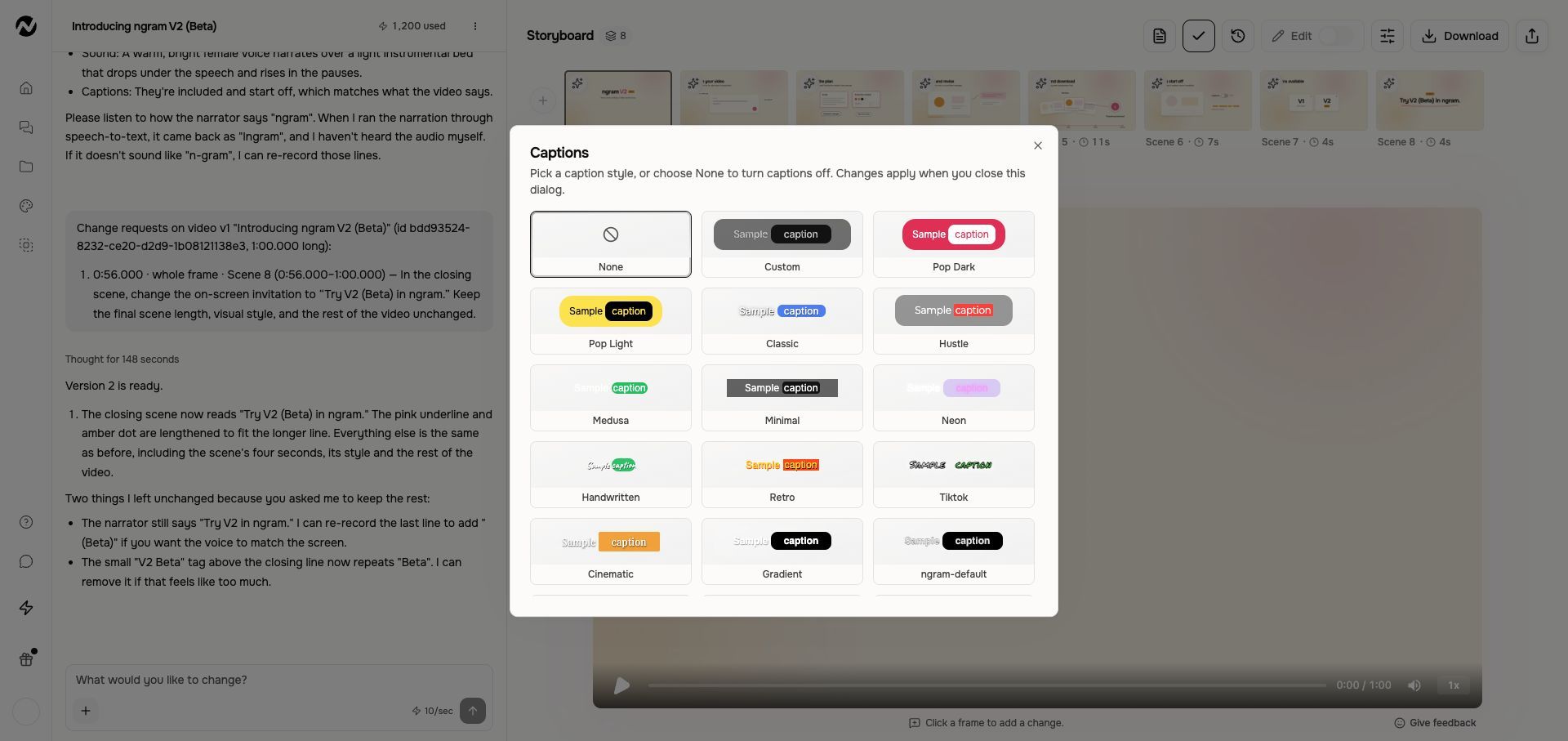
Set captions for a V2 result
- Open a completed V2 conversation and select the output to use.
- Choose Edit video, then Captions when a caption track is available.
- Choose a caption style to enable captions, or select None to keep them off. New V2 videos start with captions off.
- Close the Captions dialog to apply the choice, then replay the result.
- Download after confirming the caption setting.
Revise audio in V2
Ask in chat for a narration or music change, identifying the relevant section and what should stay. Separate voiceover and music switches are useful only when the output has separate audio tracks; they cannot independently control sounds already mixed into one track.
If a control is missing
Check that a completed output is selected and a caption or separate audio track is available. A missing track is different from a track being switched off. Describe the needed change in chat instead of following the V1 editor path below.
V1 workflow
The instructions and screenshots below apply to V1 projects. In V2, use the workflow above; the same direct editing controls may not be available.
Use this when
Use this guide when a finished video has missing or muted narration, captions, music, or sound effects; the background music is too loud; or you want to change a scene's spoken script without replacing its visuals. It covers the quick Edit video switches, Edit → Music, and scene-by-scene narration in Edit → Script.
This guide does not select the original voice or language, fix an exported file that differs from the preview, or guarantee recovery of a missing generated track. Use the voice guide before generation and the export guide when only the downloaded file is wrong.
Before you start
Open the exact finished conversation from Projects, keep its URL, and replay the affected scene with device audio enabled. Note whether the problem is present in the Studio preview or only in a downloaded file. Preserve the current render before regenerating narration, and review any displayed credit estimate.
Open quick controls
- Open a finished agentic conversation.
- Select Edit video above the preview.
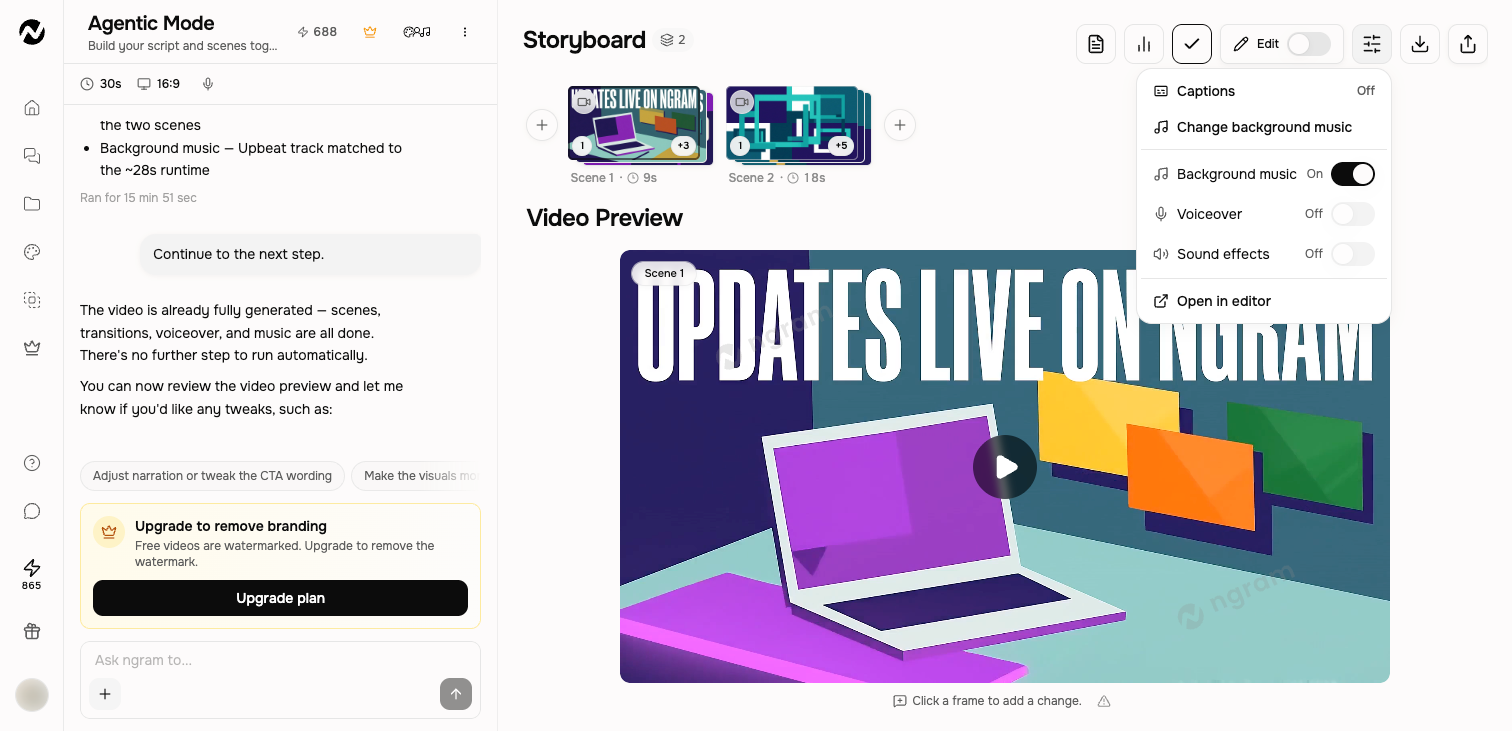
- Choose the caption option, change background music, or use the available audio switches. To change a caption's look, open Edit → Captions, choose a preset or Custom, then select a project-brand color or enter an exact color and an available font; preview the result, then close the Captions dialog to apply the changes. For a precise music-level adjustment, open Edit, select Music, set Background music volume with the slider, then select Save.
- Open the full editor when the change needs track-level control.
Replace or adjust music in a finished video
From the finished video, open the background-music selection to browse and replace the current track, or turn background music off. For volume, open Edit → Music and adjust Background music volume. The preview updates immediately; select Save to keep the selected track and level before export, then review the mix against narration.
Voiceover and sound effects
Availability depends on what the project contains. A disabled switch usually means the current video has no compatible generated layer or the control belongs in another editing surface. Use chat for a creative narration change and the editor for direct audio-layer work.
Turn a script into voiceover or change scene narration
- Open the finished conversation and select Edit.
- Open Script and select the affected scene.
- Edit the narration, then select Apply changes. ngram re-voices the affected scene while retaining its visuals.
- The new narration plays at a natural pace. In compatible motion-graphics and hybrid scenes, scene timing follows the revised audio while existing visuals stay in place. A scene built from rendered video may need regeneration, while screencast and slide-led projects keep their established timing rules.
- Replay the complete scene and confirm the voiceover, captions, music balance, and following transition before saving or exporting.
The words on screen need changing. Where do I edit them?
Use the caption option for the video's subtitles or auto-generated captions. To change words that appear as text inside one scene, turn on Edit, select that scene and its text element, update the wording, then select Save. Check names, product terms, numbers, line breaks, and the selected layer after any narration or scene-text change, then replay the scene before export.
Expected result
The Studio preview plays the selected narration, caption, music, and sound-effect state. Music-volume changes persist after Save. Direct script changes re-voice the affected scene at a natural pace, with compatible scene timing following the audio, and the fresh downloaded video matches the verified preview.
If audio or captions are missing
- Preserve the current project and record the affected scene or timestamp. Confirm whether the track is missing in the Studio preview or only after download.
- Open Edit video and confirm Voiceover, Captions, Background music, or Sound effects is not muted. A disabled switch means the current video has no compatible track for that control.
- If one generated voiceover scene is missing and the script is intact, use Apply changes or the offered scene regeneration once for only that scene after reviewing the displayed credit estimate.
- Replay the scene. If the track remains missing, the control stays unavailable, or captions remain out of sync, do not regenerate again; contact Support.
Contact Support after one failed audio recovery
Stop after one targeted recovery if voiceover, captions, music, or sound remains missing or fails again. Send Support the project URL, approximate time, affected scene and timestamp, missing track, visible error or disabled control, browser, whether the problem also appears in the preview, whether you retried once, and whether Usage shows a credit change.
Audio and captions FAQ
In V1, why does my finished video have no voiceover?
Check device audio, then open Edit video and confirm Voiceover is not muted. If the switch is disabled, the video may not contain a compatible voiceover track. When one scene is missing and its script is intact, re-voice only that scene once; contact Support if it remains missing.
In V1, how do I turn my script into a voiceover?
For a finished video, open Edit → Script, add or change the narration for the affected scene, and select Apply changes. ngram turns that scene's script into voiceover while keeping its visuals. A substantial timing change may require Regenerate scene.
In V1, how do I make the background music quieter?
Open Edit → Music, move Background music volume, and select Save. Replay a narration-heavy section to confirm the mix before export.
In V1, why are captions missing or out of sync?
Confirm Captions is enabled and replay the current Studio preview after the latest narration change. If captions are still missing or out of sync after one affected-scene recovery, stop and contact Support rather than regenerating repeatedly.
In V1, why is an audio switch disabled?
A disabled Voiceover, Background music, or Sound effects switch usually means the current video has no compatible generated track for that control. Confirm you opened the intended finished project and selected the relevant editing surface.
In V1, how do I edit subtitles and scene text?
Use the caption option for subtitles or auto-generated captions. For words placed inside a scene, turn on Edit, select the scene and its text element, change the wording, and select Save. Replay the scene to verify you edited the intended layer.
In V1, the words on screen need changing. Where do I edit them?
Open the finished conversation, turn on Edit, select the affected scene and its text element, then change the words and select Save. Confirm the correct scene and text layer changed before export.
In V1, how do I replace the music in a finished video?
Open the background-music selection from the finished video, browse and choose the replacement track, then select Save. Use Edit → Music when you also need to adjust Background music volume, and replay a narration-heavy section before export.
Keep going
- Revise a generated video — Choose between chat revisions, frame-specific requests, inline editing, and a full-editor copy.
- Edit inside an agentic conversation — Edit scene content, layers, media, audio, interactivity, and timing inside a conversation.
- Download and export a video — Download an MP4 from an agentic video or editor project at the current plan resolution.
- Choose a voice and avatar — Select narration, language, presenter, and custom identity options for a video.
- Use Help and contact Support — Choose the right help channel and include useful, privacy-safe diagnostic details.
Continue in ngram
Open the relevant Studio surface and follow the current controls shown in your account.
Was this helpful?
Still need help? Ask the team