Create your first video
Create a V2 video from a brief, review the plan, and refine the preview. Follow the separate V1 steps when working in the previous experience.
Written By Rishikesh from ngram
Last updated 9 days ago
Read before this
Start in V2 (Beta) to turn a brief into a video you can review and revise. The V1 instructions remain below for existing projects.
Before you start in V2
Sign in and check that you have credits available. Prepare a short brief with an audience, a main message, and the action you want viewers to take. Add only source material you have permission to use.
Create a video in V2
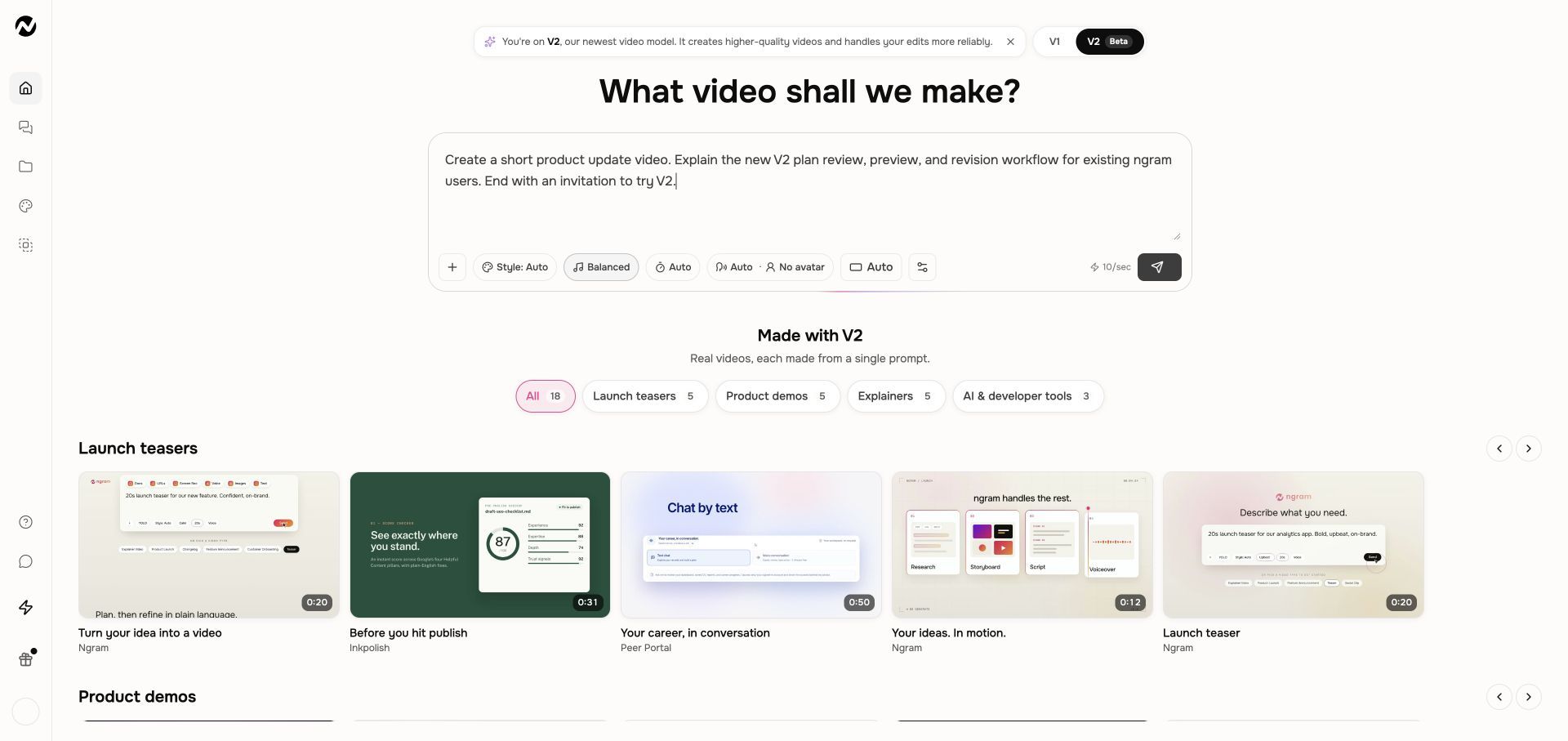
- Open Home and choose V2, marked Beta, above the prompt.
- Enter your brief in Describe your video. Use Add files if the video needs source material.
- Review Style, Pace, Duration, Narrator, and Aspect ratio. Auto lets ngram choose where that option is available.
- Choose Create video.
- Read Script and open Production details in the proposed plan.
- Choose Request changes to adjust the plan, or Approve plan to start production.
- Watch the video preview. Use chat or Make changes if it needs a revision.
- Choose Download when the selected result is ready. If Preparing download appears, wait for the final MP4.
Check the result
Replay the opening, factual claims, and final call to action. New V2 captions start off; enable them when a caption track is available if you want them included. The conversation keeps the work together so you can return to it.
If progress stops
A plan waiting for approval needs your response. Read the last conversation message before retrying a failed run. Keep the same conversation open and avoid duplicate creation requests while production or download preparation is still active.
Understand the differences when moving from V1
V1 workflow
The instructions and screenshots below apply to V1 projects. In V2, use the workflow above; the same direct editing controls may not be available.
Before you start
- Know the audience and the action you want them to take.
- Collect any approved URLs, decks, PDFs, screenshots, images, audio, or recordings the video should use.
- Decide whether you want ngram to proceed automatically or pause for storyboard approval.
Choose a first goal during onboarding
A new account can be asked what it wants to do first: create from scratch, turn existing content into video, clean up media, add captions or translation, create an image or clip, or explore. The choice opens a relevant starting surface; it does not permanently limit what the account can create later.
Create the first version
- Open Home and write a clear prompt with the subject, audience, tone, and desired outcome.
- Use the plus button to attach source files, or include a public source URL in the prompt.
- With V1 selected, set style, music, duration, voice or avatar, aspect ratio, and available model options only when you need specific control.
- Submit the prompt. When a script or storyboard review appears, read it carefully and use the visible revision controls before you approve generation.
- Leave the conversation open or return later from Recents or Projects; the run is saved to the conversation.
Review the result
The finished workspace keeps chat on the left and the storyboard/video workspace on the right. Play the preview, inspect each scene, open View script, and use the suggested actions or your own message to request changes.
Ask for one concrete change at a time when the change is local: name the scene, narration line, frame, color, transition, or CTA. Use a broader instruction only when you want the whole video reworked.
Finish and share
- Use Edit for scene-level manual changes inside the conversation.
- Use Edit video for captions, music, voiceover, sound controls, or a separate full-editor copy.
- Download the finished video, or open Share to publish a public link, copy an embed, or publish through a connected social account.
Keep going
- Write a better video prompt — Write prompts that produce stronger scripts, visuals, pacing, and revisions.
- Choose V2 (Beta) or V1 — Choose the creation experience for new work.
- Revise a generated video — Choose between chat revisions, frame-specific requests, inline editing, and a full-editor copy.
- Share, embed, publish, and update a video — Use the current Share control and understand the curated Made with Ngram gallery.
Continue in ngram
Open the relevant Studio surface and follow the current controls shown in your account.
Was this helpful?
Still need help? Ask the team