Understand the agentic workspace
Use chat and the unified storyboard workspace together to review progress, inspect scenes, revise the video, edit, download, and share.
Written By Rishikesh from ngram
Last updated 9 days ago
Read before this
The V2 workspace keeps your brief, plan, revisions, and video preview in one conversation. Use it to review the direction before production and refine the result afterward.
Use the V2 workspace
- Open Home, choose V2, and start a video, or reopen an existing V2 conversation.
- Read messages in the conversation to see whether ngram needs information or plan approval.
- Open Script and Production details when a plan is ready. Request changes or Approve plan.
- Play the result in the preview. Use Make changes to target a moment, or type a revision in Message Ngram.
- Use Versions when more than one output is available, then download the selected result.
Understand the controls
Give feedback sends feedback about the V2 experience. Make changes and Message Ngram request changes to the video. A live preview may be available before the final MP4; Download prepares that file when necessary.
Resume without duplicating work
If you leave the page, return to the same conversation and read its current state. Check for a question, an approval request, or a failed step before sending another request. V1 direct-editing instructions below do not describe the ordinary V2 revision path.
V1 workflow
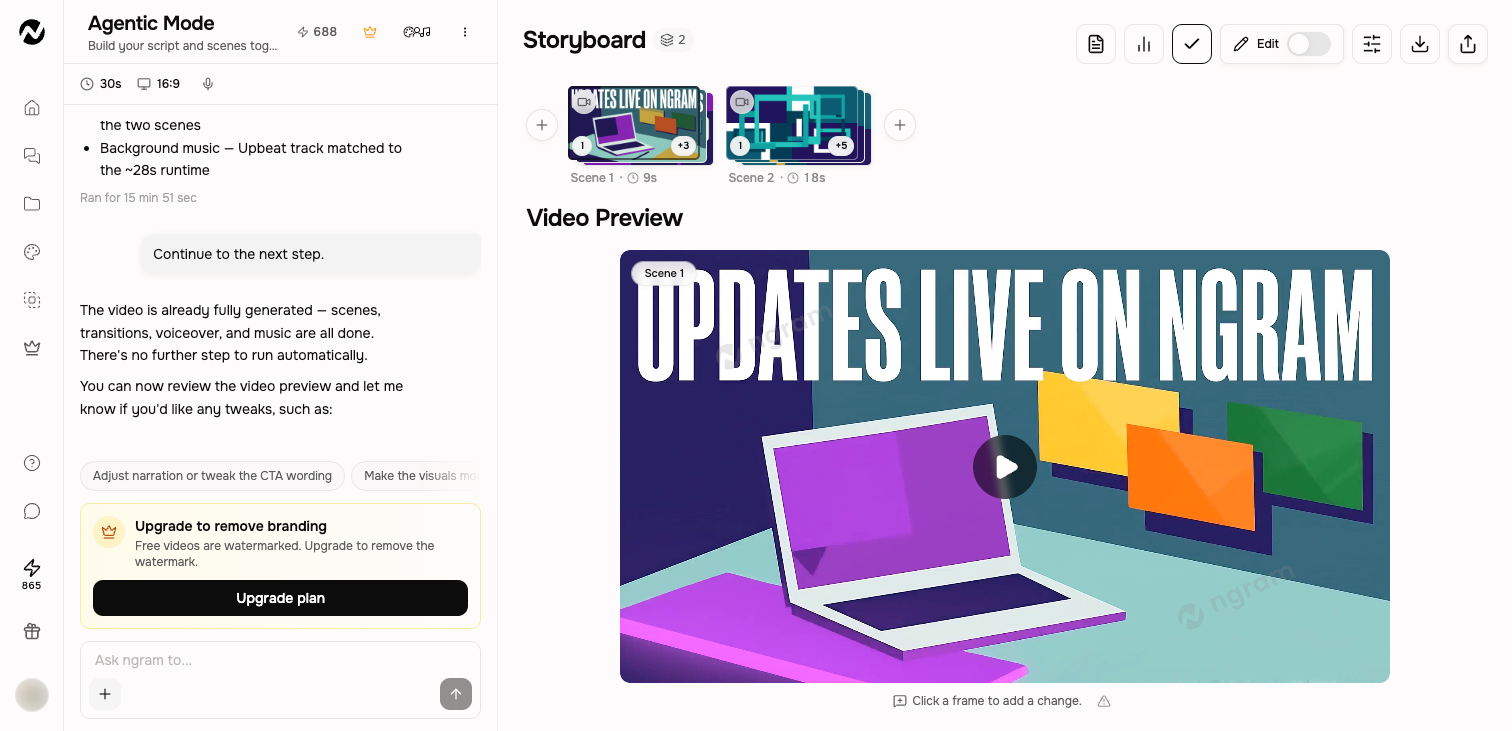
The instructions and screenshots below apply to V1 projects. In V2, use the workflow above; the same direct editing controls may not be available.
Before you start
You can prepare the brief while signed out. To follow the workflow in Studio, sign in, open Home, and use an account or team context where you are allowed to create. Have approved source material ready before you submit a factual video.
Chat and progress
The left side contains your instructions, ngram's progress messages, expandable reasoning summaries, credits used in the session, and suggested next actions. Use the message box for revisions after the first video is ready.
You can rename a conversation, attach more sources, or reopen it later. Eligible checkpoints in newer conversations can also offer fork or undo actions. A long-running generation is tied to the conversation rather than a single browser visit.
Storyboard and preview
- Scene cards show the order and duration of the current scenes.
- Plus controls add a scene before or after the current storyboard.
- View script opens the current script. After generation, ask for script edits in chat.
- Clicking a frame lets you attach a visual change request to that part of the video.
Editing controls
The Edit switch opens the inline workspace for direct scene changes without leaving the conversation. Edit video contains quick controls for captions, music, voiceover, sound effects, and the separate Open in editor path.
Download exports the current finished version. Share controls the public link, embed, social destinations, and republishing when the live version is older than the current edit.
A useful review order
- Check the script for factual and structural problems.
- Check scene order, narration, and pacing.
- Play the complete preview once before making local changes.
- Request targeted changes in chat, then use inline editing for precise visual adjustments.
- Download or publish only after the current preview matches the version you want to share.
If the result is not available
If a control or result does not match this guide, confirm that you are in the intended account or team and reopen the current conversation from Projects. Use the closest visible option, then check Help or contact Support when the difference blocks the task.
Keep going
- Review scripts and storyboards — Review the pre-start script or storyboard approval step and the finished scene plan.
- Revise a generated video — Choose between chat revisions, frame-specific requests, inline editing, and a full-editor copy.
- Edit inside an agentic conversation — Edit scene content, layers, media, audio, interactivity, and timing inside a conversation.
- Share, embed, publish, and update a video — Use the current Share control and understand the curated Made with Ngram gallery.
Continue in ngram
Open the relevant Studio surface and follow the current controls shown in your account.
Was this helpful?
Still need help? Ask the team