Set up a Brand Kit
Store approved logos, colors, fonts, terminology, tone, and approved wording so new videos begin from the same brand source. Use Brand Kit when videos from the same team look different every time.
Written By Rishikesh from ngram
Last updated 24 days ago
Read before this
Use this when videos look inconsistent or off-brand
Use Brand Kit when different videos use the wrong logo, colors, fonts, visual treatment, tone, product wording, call to action, or organization-supplied disclaimer wording—or when your team keeps repeating the same brand instructions in every prompt. A kit gives ngram one approved identity source to apply to new generations.
What Brand Kit does not verify
Brand Kit applies the rules and assets you provide; it does not certify that a video is legally or regulatorily compliant. Add approved terminology and blocked phrases, treating any organization-supplied disclaimer wording as an approved phrase that must appear, then have a qualified reviewer approve regulated or high-stakes content before publishing.
Before you start
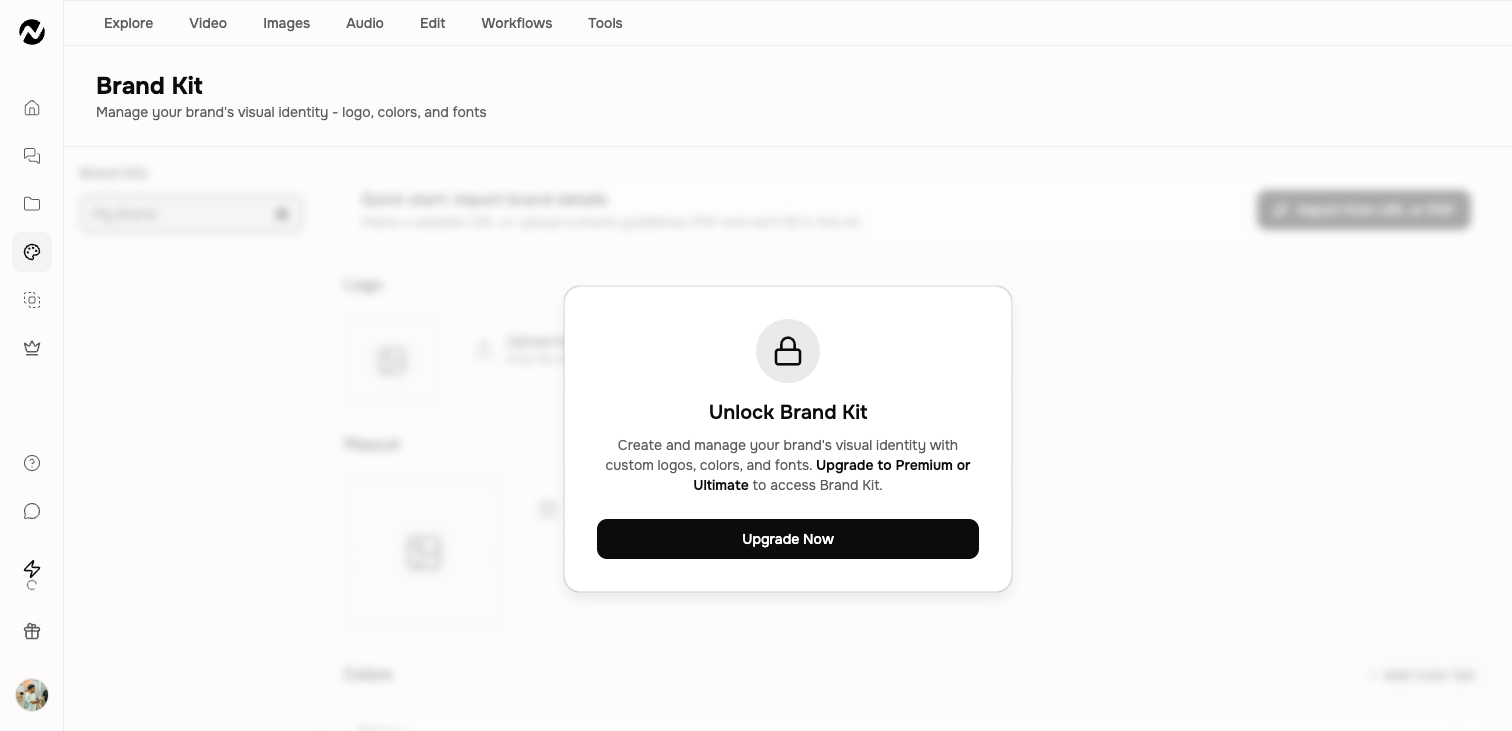
- Premium: one Brand Kit.
- Ultimate: unlimited Brand Kits under the current configuration.
- Free and Basic: Brand Kit creation is not included.
- A team kit is available from the corresponding active team context.
Create or import a kit
Build a kit manually or import brand information from a public website URL or a brand-guidelines PDF. Website and PDF extraction is a starting point: review every imported color, font, logo, and rule before using it in customer-facing work.
What a kit can contain
In Colors, add or choose a color set, then assign its swatches to Primary, Secondary, Accent, Background, Text, and Muted text. Open a role to choose a swatch; use Custom name when your team has another named color job. A role left unset is selected for readable contrast when the video renders. Review colors imported from a website or PDF before saving the kit.
- Logo, mascot, and example assets
- Up to three color sets with up to five colors in each set
- Typography choices plus motion, image, and screenshot style
- Voice, tone, approved phrases, blocked phrases, and calls to action; approved phrases can include organization-supplied disclaimer wording
- Optional intro and outro slides, plus a default kit when more than one is available
Asset requirements
Logo and mascot uploads support common web image formats. The current Studio limits are 5 MB for these assets and 15 MB for a brand-guidelines PDF; follow the live upload message if those limits change.
Brand Kit does not currently provide the old corner-watermark, background-tile, margin, or opacity controls described by legacy help content.
Apply a kit to a video
- Choose the Brand Kit in the creation settings when the workflow offers it.
- Review the selected logo, colors, typography, and visual rules before generation.
- Turn the intro or outro on only when you want that bookend in this video; storing it in a kit does not require every video to use it.
- Review the first complete preview and correct any imported brand value that does not match the approved guidelines.
Expected result
New videos created with the kit should consistently use its selected identity and content rules. Review the complete preview—including captions, narration, intro, outro, and call to action—because a selected kit guides generation but does not replace final approval.
If the video is still inconsistent
Preserve the current project, confirm that the intended kit was selected, and correct the source value inside Brand Kit. Retry only the affected scene or smallest relevant generation once. Contact Support if an eligible kit is missing, the saved values do not persist, or the same approved value is ignored again. Include the project URL, kit name, approximate time, affected scene, and the visible mismatch; do not send confidential guidelines in the first message.
Brand Kit FAQ
Why do our videos look different every time?
Create or correct a Brand Kit, select it in creation settings, and review the complete first preview. Store the approved logo, colors, fonts, terminology, tone, and approved wording—including any organization-supplied disclaimer wording—so each new video starts from the same rules.
Why do my videos keep using different logos, colors, or fonts?
Create or correct a Brand Kit, select it in the creation settings, and check the complete first preview. Brand Kit is the reusable source for identity assets and rules; a visual style alone does not store all of those requirements.
Can Brand Kit keep approved wording and disclaimers consistent?
Use an approved phrase for disclaimer wording supplied by your organization. Brand Kit can apply that wording as a content rule, but it does not verify that the wording is legally sufficient; review the script, narration, captions, and on-screen text before publishing.
Does using Brand Kit make a video legally or regulatorily compliant?
No. Brand Kit applies the customer-supplied rules and assets; it does not certify compliance. A qualified reviewer should approve regulated or high-stakes content before publication.
What should I do if my Brand Kit is selected but a scene is still off-brand?
Keep the current project, verify and correct the relevant kit value, then retry only that scene once. Contact Support if the same approved value is ignored again.
Keep going
- Choose a visual style — Use Auto, style presets, templates, and Brand Kit without confusing their roles.
- Create and manage a custom voice — Create, preview, use, and remove custom voice models with current plan limits.
- Create and manage a custom face — Create, use, and remove custom presenter faces with current plan limits.
- Use teams and collaboration — Understand team access, roles, invitations, shared work, credits, and ownership.
Continue in ngram
Open the relevant Studio surface and follow the current controls shown in your account.
Was this helpful?
Still need help? Ask the team