Set duration and aspect ratio
Choose a target length and orientation that fit the message, destination, and limits shown for your current plan.
Written By Rishikesh from ngram
Last updated 9 days ago
Read before this
Set duration and aspect ratio in V2
Choose these before starting a new video. Duration is a target; the generated result can differ, and V2 bills on generated duration.
- Open Home with V2 selected.
- Open Duration and choose Auto or a displayed duration.
- Use Aspect ratio to choose the layout for where the video will be watched.
- Review the selected values before choosing Create video.
For a fixed runtime, include that constraint in the brief and check the proposed script. Do not assume a V1 free-plan duration rule or model-specific format applies unchanged to V2.
V1 workflow
The instructions and screenshots below apply to V1 projects. In V2, use the workflow above; the same direct editing controls may not be available.
Use this when a video or scene is too long, too short, or the wrong shape
Set duration and aspect ratio before generation when you know the destination. If most of a finished video is already correct, change only the affected scene or request a shorter or longer version while naming the content that must remain, instead of rebuilding everything.
Before you start
Sign in, open Home, and prepare the prompt and approved sources. Choose the target destination and review the plan, model compatibility, and displayed credit estimate before increasing duration or regenerating work.
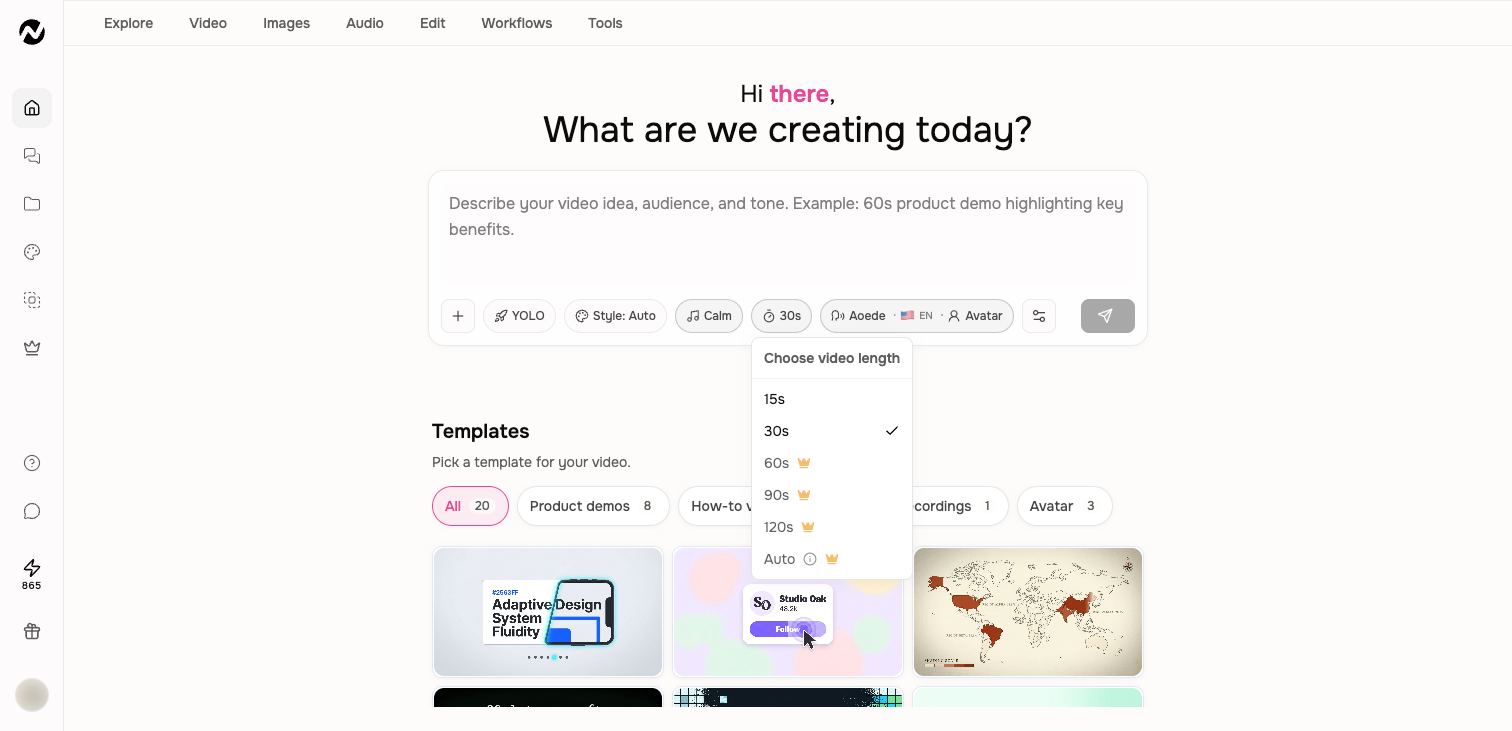
Duration options
The Home composer currently offers 15, 30, 60, 90, and 120 seconds plus Auto, which can choose a longer length when available. Free accounts are limited to 15 or 30 seconds; longer choices and Auto require a paid plan.
Choose a useful length
- 15–30 seconds: one message, social teaser, or short product moment.
- 60–120 seconds: explainers, launch videos, and structured walkthroughs.
- Auto: source-led jobs where covering the material matters more than hitting a fixed runtime.
Aspect ratio
On Home, find the current ratio beside the voice control in the composer. Select the ratio to cycle through the options supported by the selected video type: 16:9 landscape, 9:16 vertical, or 1:1 square. Public Screencast and Screencast + Avatar support these three choices. Use 16:9 for product demos and embeds, 9:16 for phone-first viewing, or 1:1 for square feeds. Review the preview before generation.
Other surfaces or APIs may support additional ratios. Document and choose the ratio available in the surface you are actually using rather than assuming every ratio is available everywhere.
Duration affects production
Longer videos normally need more scenes, narration, generation time, and credits. If the source contains too much for the target length, tell ngram what to prioritize rather than expecting every detail to fit.
Change one scene without restarting
When one scene is too fast or slow, identify it in the storyboard or editor and state the target duration or the narration that must fit. Preserve the approved scenes, wording, and aspect ratio in the request. Review the neighboring transitions after the timing change.
A safe first pass
- Open Home and add the prompt and approved sources.
- Choose the relevant creation setting and leave unrelated controls at their defaults.
- Review the mode, duration, aspect ratio, voice, models, and displayed credit estimate.
- Create a representative first version and verify the setting had the intended visible effect.
Expected result
The script or storyboard should fit the target runtime, and the preview should use the selected landscape, vertical, or square frame without cutting off important content. A targeted scene change should retain the rest of the current video.
If the duration or ratio does not apply
Keep the current project and check the selected plan, video type, model, and visible compatibility message. For a working result, restate the target and retry only the affected scene or smallest relevant generation once. Contact Support if an eligible setting is missing, the saved selection does not persist, or the same targeted change fails again; include the project URL, selected duration and ratio, video type, model, and approximate time.
Duration and aspect ratio FAQ
In V1, how can I make a video shorter without losing the original?
Fork the conversation first, or use an independent editor copy when that is already your editing path. Request the shorter version in the copy and name the message, scenes, or CTA that must remain. Review the new result before deleting or replacing anything in the original.
In V1, can I change the duration of only one scene?
Yes. Identify the scene in the storyboard or editor, state the target duration or narration that must fit, and say which other scenes and settings must remain unchanged.
In V1, which aspect ratio should I choose?
Use 16:9 for landscape destinations such as product demos, presentations, YouTube, and embeds; 9:16 for phone-first vertical viewing; and 1:1 for square feeds. Follow the choices supported by the selected model.
In V1, why is a duration or aspect ratio unavailable?
The available options can depend on plan, entry surface, video type, and model. Check the live compatibility message, then contact Support if an option that should be eligible remains missing.
Keep going
- Create your first video — Create a first ngram video from the current Home and agentic workflow.
- Understand credits — Understand credit estimates, reservations, charges, plan grants, top-ups, and auto top-up.
- Share, embed, publish, and update a video — Use the current Share control and understand the curated Made with Ngram gallery.
Continue in ngram
Open the relevant Studio surface and follow the current controls shown in your account.
Was this helpful?
Still need help? Ask the team