Review scripts and storyboards
Correct the story, claims, narration, and scene plan before asking ngram to spend more time and credits on visual generation.
Written By Rishikesh from ngram
Last updated 9 days ago
Read before this
In V2, review the proposed script and production plan before approving production. This is the point to correct the message, facts, scene order, and call to action.
Before you review a V2 plan
Start a V2 video from Home and wait for the plan. Have the approved source material available so you can check claims. Planning approval is part of V2; it does not require a subscription named Pro.
Review and approve in V2
- Read Script to check the proposed narration.
- Open Production details to review the planned approach.
- Choose Request changes if the direction needs work. Explain the change and what should stay.
- Review the revised plan.
- Choose Approve plan when you are ready for production.
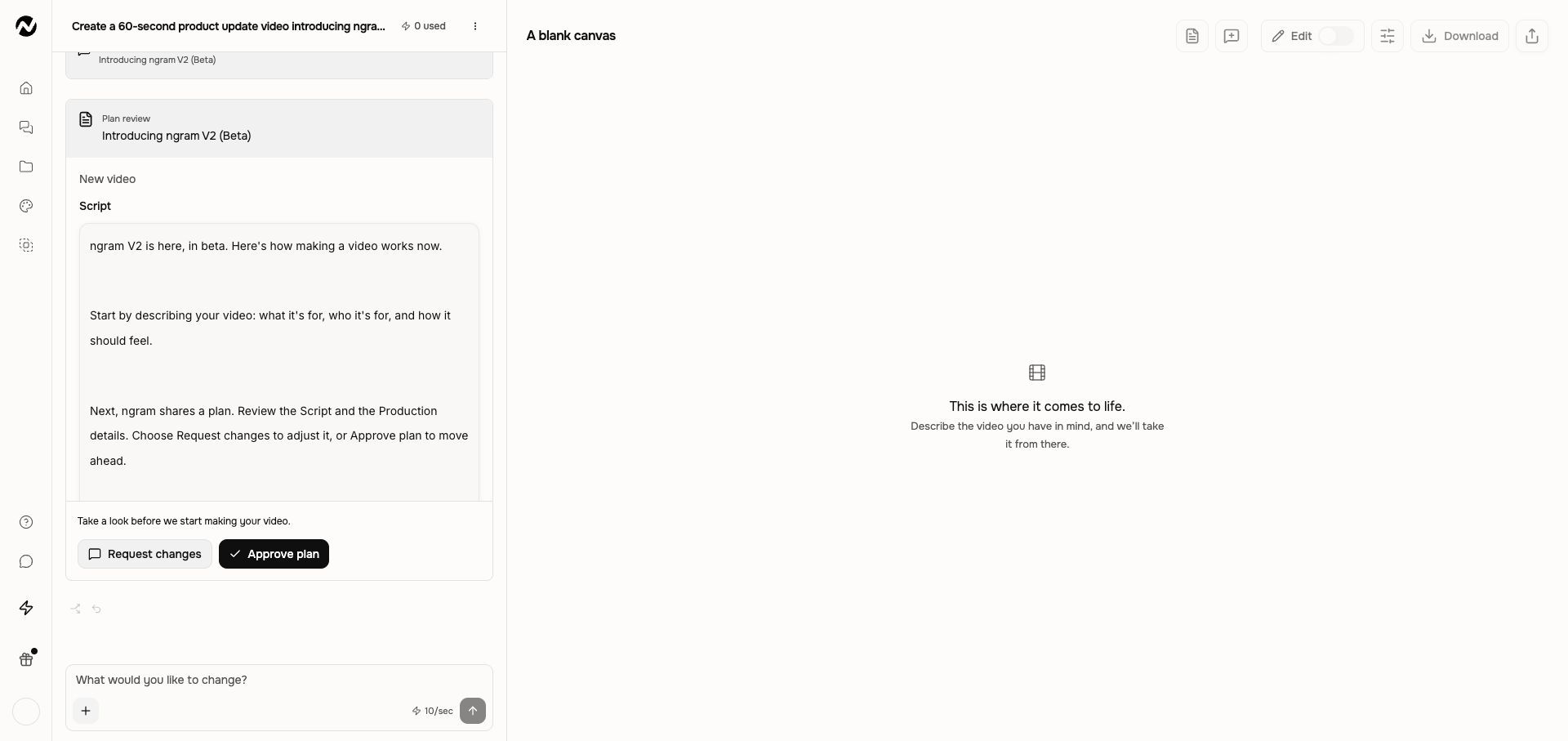
After approval, the conversation moves into production. Reading Script is a review action; use Request changes or chat to change its wording rather than assuming it is an editable text field.
If production has not started
Check whether the plan is waiting for approval or whether the conversation needs another answer. After requesting a change, review the revised plan before approving it. Avoid approving an older plan while a new revision is still being prepared.
V1 workflow
The instructions and screenshots below apply to V1 projects. In V2, use the workflow above; the same direct editing controls may not be available.
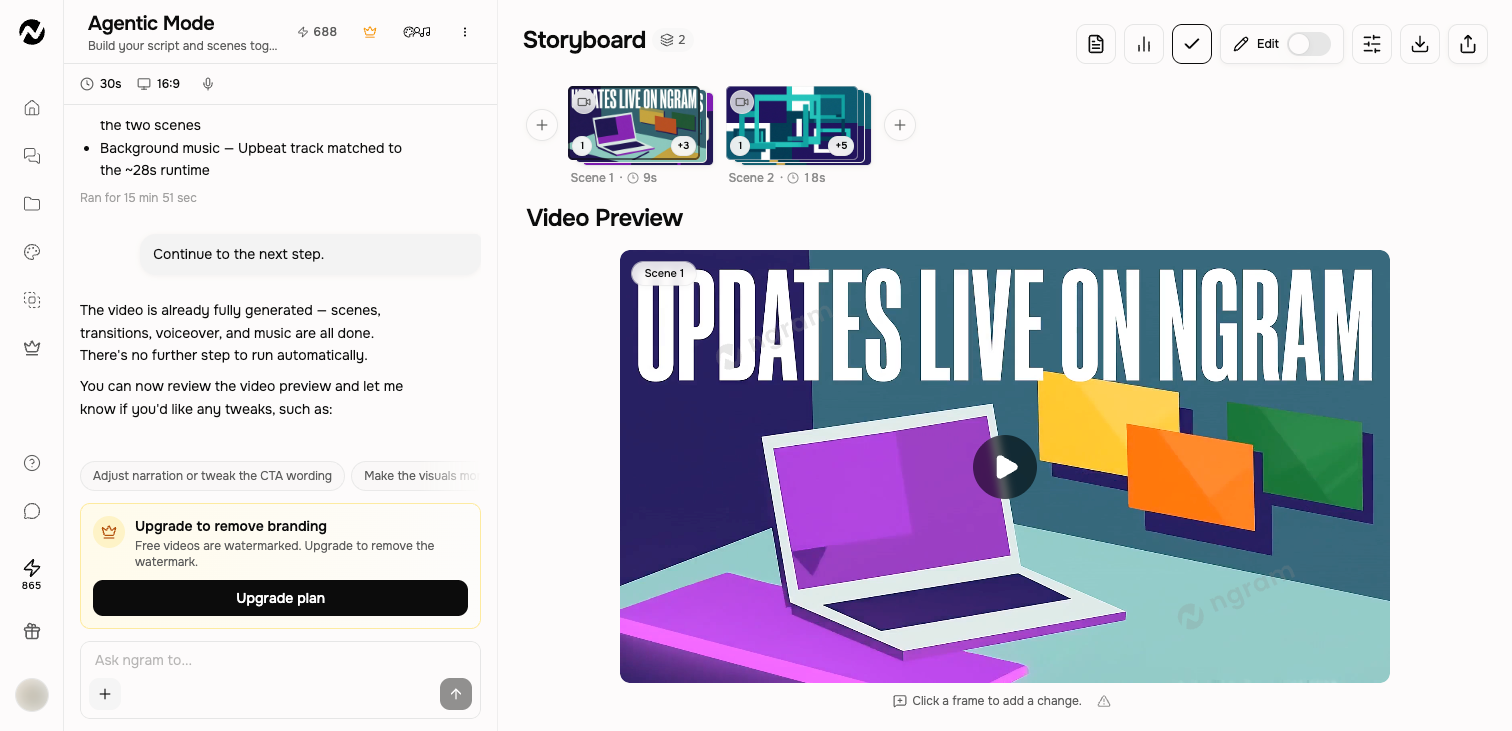
Before generation
The pre-start flow can show a generated script or storyboard before video generation. Read the full opening, claims, scene order, narration, pacing, and CTA. Use the revision control that is visible in that review step; do not assume every script viewer supports direct text editing.
Approval in older V1 conversations
An older V1 conversation may already be waiting at a storyboard approval step. Review the opening, scene order, narration, factual claims, source use, pacing, and CTA before continuing. For new work with plan review, choose V2 on Home.
After generation
In a finished owned video, select Edit and open Script to revise narration scene by scene. The panel highlights timed words during playback and lets you seek the preview. Select Apply changes to re-voice an affected scene while keeping its visuals; when a much longer or shorter narration changes timing too much, select Regenerate scene instead.
Storyboards vary by video type
- A scene may use one image, start and end frames, multiple references, uploaded footage, or rendered motion graphics.
- Do not assume every scene has exactly two keyframes.
- Scene duration and controls depend on the production path and selected model.
- Review the actual preview in addition to the scene cards.
A safe first pass
- Open Home and add the prompt and approved sources.
- Choose the relevant creation setting and leave unrelated controls at their defaults.
- Review the mode, duration, aspect ratio, voice, models, and displayed credit estimate.
- Create a representative first version and verify the setting had the intended visible effect.
Keep going
- Choose V2 (Beta) or V1 — Choose the creation experience for new work.
- Understand the agentic workspace — Learn the current chat, storyboard, preview, editing, download, and sharing controls.
- Revise a generated video — Choose between chat revisions, frame-specific requests, inline editing, and a full-editor copy.
Continue in ngram
Open the relevant Studio surface and follow the current controls shown in your account.
Was this helpful?
Still need help? Ask the team