Share a video and see who watched it
Send a video to prospects, customers or new hires with a link for each person, then see who opened it, how much they watched and when to follow up.
Written By Anish Muppalaneni
Last updated 4 days ago
Read before this
No earlier help article is required. You can start here.
When you need to know who watched
Use this guide when you send one video to specific people and your next move depends on whether they watched it. For example, an account executive sends a recorded demo to three people at a prospect after a first call. Before booking the next meeting, they want to know which of the three opened it, who watched to the end, and which part someone watched twice. A customer success manager sending a renewal walkthrough, or an onboarding lead sending a welcome video to new hires, is in the same position.
The result is a separate link for each person. You can see who opened their link, how much of the video they watched, which parts they skipped or watched again, and recent activity in one list. You then follow up with the people who watched, and nudge the ones who did not.
If you are posting one link where you cannot know in advance who will open it, such as a newsletter or a community channel, recipient links do not fit. Use an email gate instead, which asks viewers for their details before they continue. See Add calls to action and collect viewer details. If you only need a link or embed code and do not need names, Hosted videos is enough.
Before you start
- Hosted videos is a tab in Projects. It carries a Beta badge.
- Uploading your own video, or sharing a video made in ngram with an unlisted link, starts on Basic.
- Recipient links, the per-viewer rows on a video's Overview tab, and Contacts are included in Premium and Ultimate. On Basic you still see plays and viewer counts, but not who the viewers are.
- Email gates and call-to-action performance are included in Ultimate.
- A control with a crown needs a higher plan. Choosing it explains which plan includes it.
- Have the name and email address of each person you plan to send the video to.
Step 1. Put the video in Hosted videos
Start with a finished video. To make one in ngram, follow Create your first video. Then add it to Hosted videos in one of two ways.
A video made in ngram:
- Open the finished video and choose Download and export.
- Set Visibility to Unlisted, then turn on the switch at the top of the menu. The status changes to Published.
- Choose Open video page.
A video you recorded or edited elsewhere:
- Open Projects, choose the Hosted videos tab, then choose Upload and pick the file.
- Wait for the video to change from Processing to Ready to publish. This usually takes a few minutes.
- Choose Copy link on the video, check the Title in Publish video, then choose Publish and copy link.
- Select the video to open its video page.
Every step of both paths is covered in Upload, share, and update hosted videos. The video page shows the video's link under its title and has the tabs Overview, Settings, Player, Recipients and Versions.
Step 2. Create a link for each person
- On the video page, open the Recipients tab.
- Enter the person's Recipient email and Name, then choose Create link.
- Choose Copy link in the Recipient link created box and paste the link into your message to that person.
- Repeat for each person. Each one gets a different link.
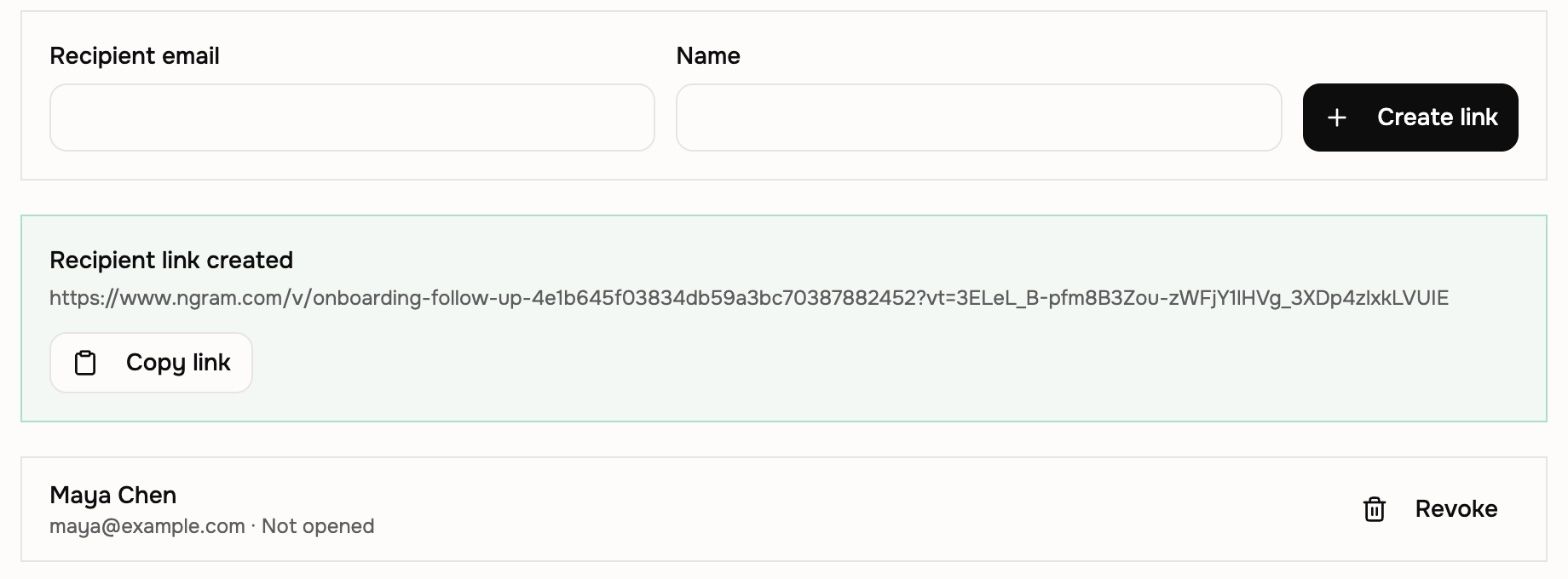
Copy each link as soon as you create it. The full link is shown only once. If you lose it, choose Revoke on that person's row and create a new link.
Views through a recipient link are counted under that recipient's name, even when someone they forward it to opens it. Give each person their own link instead of sending one link to a group.
Step 3. Test the link, then send it
- Create one extra recipient link with your own email address.
- Open it in a private browser window and check that the right video plays.
- Send each person their own link in an email or chat message. Say in one line what the video covers and how long it is.
Test with your own recipient link, not one of your recipients' links. Opening someone else's link marks it as Opened and records your viewing under their name.
Use a private window so you are not signed in to ngram. A view made while you are signed in as the video's owner still marks the link Opened and appears in Alerts, but it is not counted in plays or under Viewers.
Send only the recipient links. The video's main link still works for anyone who has it, but views through it are anonymous. To make the video stop playing after a date, or to require a password as well, see Add a password or an expiry date.
Step 4. See who opened it and how much they watched
- Open the video's Recipients tab. Each person shows Opened or Not opened.
- Open the Overview tab and choose Last 7 days, Last 30 days or Last 90 days at the top of the page.
- Under Viewers, find each person's row. It shows their name, when they watched, their country and device, and the percentage of the video they watched.
- Read the strip in the row from left to right. It marks the parts they Skipped, Watched and Watched again.

Viewers who used the main link appear as Anonymous viewer. To see everyone identified by name across all your hosted videos, open Contacts in Hosted videos. Choose Export CSV to download the list for your CRM or spreadsheet. For every metric on the Overview tab, see Read a video's analytics.
Step 5. Check Alerts for new activity
Open Projects, choose Hosted videos, then open Alerts. It lists recent viewer activity across your videos, newest first, with the video's title and how much was watched. For example:
- engaged with your video after a person's name: they watched at least a quarter of it.
- watched most of your video: they watched at least three quarters of it.
- replayed part of your video: they went back over one part several times.
- clicked a call to action: they chose a button, banner or end card you added to the video.
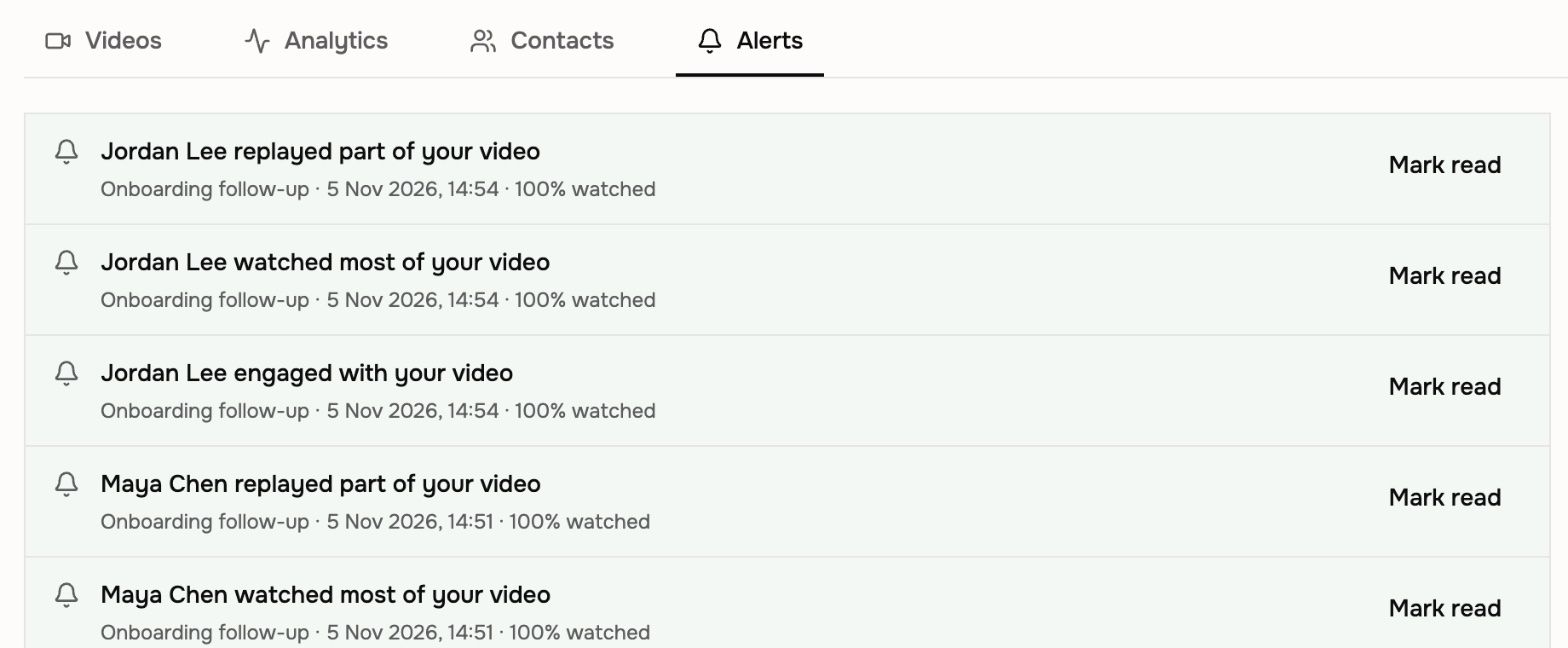
Activity from a recipient link shows that person's name. Activity through the main link shows Anonymous viewer.
New alerts are highlighted. Choose Mark read when you have dealt with one.
Step 6. Follow up based on what they watched
- Watched most of it: follow up now while it is fresh. If the strip shows a part watched again, start with that topic.
- Opened but stopped early: check where the strip ends. Answer the question that part raises, or send a shorter cut.
- Not opened after a few days: send a short reminder with the same link. You do not need a new link.
- Clicked a call to action: treat it as a request for the next step it offered, such as booking a call.
To put a booking link or button inside the video, add a call to action on the Settings tab. See Add calls to action and collect viewer details.
Step 7. Update the video without sending a new link
If something in the video changes after you send it, replace the video. Every recipient link, the main link and any embed keep working and play the new version. Analytics are kept.
- Uploaded video: on the video page, open Versions, choose Upload new version, and when it finishes processing choose Make live, then confirm Make live.
- Video made in ngram: revise it in ngram, open Download and export, and choose Update when the menu says Live link is showing the older cut.
Full steps are in Replace a video without changing its link.
What you should see
After you open your own test link in a private window, the Recipients tab shows Opened on your row, and the Overview tab counts your play and lists you under Viewers with the percentage you watched. If you do not see it yet, choose the refresh button beside the period menu. Once you have watched at least a quarter of the video, Alerts shows your name followed by engaged with your video.
If something does not work
- The Recipients tab has a crown: recipient links need Premium or Ultimate. Choose it to see plan options. On Basic, send the main link and use plays and viewer counts.
- Create link is unavailable: the video's link is turned off. On the Settings tab, under Access, turn on Unlisted link, then try again.
- A recipient says they watched, but their link shows Not opened: they probably used the main link, so their views are listed as Anonymous viewer. Send them their recipient link for future videos.
- A recipient cannot open their link: check that any expiry date has not passed and that Unlisted link is on. If the link has a password, check that they have it. Create a new recipient link if needed.
- A viewer has no row under Viewers: choose a longer period at the top of the page. Views you make while signed in to ngram as the video's owner are not listed. For videos longer than 15 minutes, viewer rows and % watched are not shown yet; plays and viewer counts are still complete.
Other ways to share
- Posting one link for many people: use an email gate (Ultimate) so viewers enter their details before watching. See Add calls to action and collect viewer details.
- Access must end on a date or need a password: add an expiry date or a password. See Add a password or an expiry date.
- Showing the video on a website or help article: use the embed code. See Embed the video on a website.
- The recipient needs the file: download it instead. See Download and export. Hosted videos cannot show who watched a downloaded file.
- Anyone may watch and find it: share it publicly. See Share and publish.
Sharing and tracking FAQ
Can I see who watched if I send one link to a group?
Not by name. Views through the main link are anonymous; you see plays and viewer counts. Create a recipient link for each person, or on Ultimate add an email gate so viewers enter their details before watching.
What happens if someone forwards their recipient link?
The link still plays, and views are counted under the original recipient's name. If you choose Revoke on that person's row, the link keeps playing but its views count as Anonymous viewer, so send them a new link. To stop people watching, change the password or set an expiry date; both apply to everyone with the link.
Do recipient links keep working after I replace the video?
Yes. Making a new version live, or choosing Update for a video made in ngram, keeps every recipient link, the main link and embeds. Analytics are kept.
Can I copy a recipient link again later?
No. The full link is shown only when you create it. If you lose it, revoke that link and create a new one for the same person.
Keep going
- Protect links and read analytics — Every control for passwords, expiry dates, recipient links, calls to action and analytics.
- Hosted videos — Upload, publish, embed and replace videos without changing the link.
- Follow-up video after a support call — Decide what a customer follow-up video should say before you send it.
- Share and publish — Choose public or unlisted sharing for a video made in ngram.
Send your next video one link per person
Open a video in Projects › Hosted videos, create a recipient link for each person on its Recipients tab, and check who watched on its Overview tab.
Was this helpful?
Still need help? Ask the team