Find and manage old projects, videos, chat history, and Tool results
Find a previous video, conversation, editor project, or one-shot Tool result in Recents or Projects, then reopen, rename, or delete it safely.
Written By Rishikesh from ngram
Last updated About 1 month ago
Read before this
Use this when
Use this guide when you cannot find an old video, your chat history appears missing, you need to reopen a one-shot Tool result, or you want to rename or delete saved work. Projects are shown for the account or team that is currently active, so missing work is often in another context rather than gone.
What this does not do
Switching filters or team context does not merge work between workspaces. This guide also does not provide a self-serve way to restore an item after you confirm deletion.
Before you start
Sign in with the account that created the work. If it belonged to a team, make sure you still have access to that team. Know whether you started with agentic chat, the editor, or a focused Tool because each result can appear under a different Projects filter.
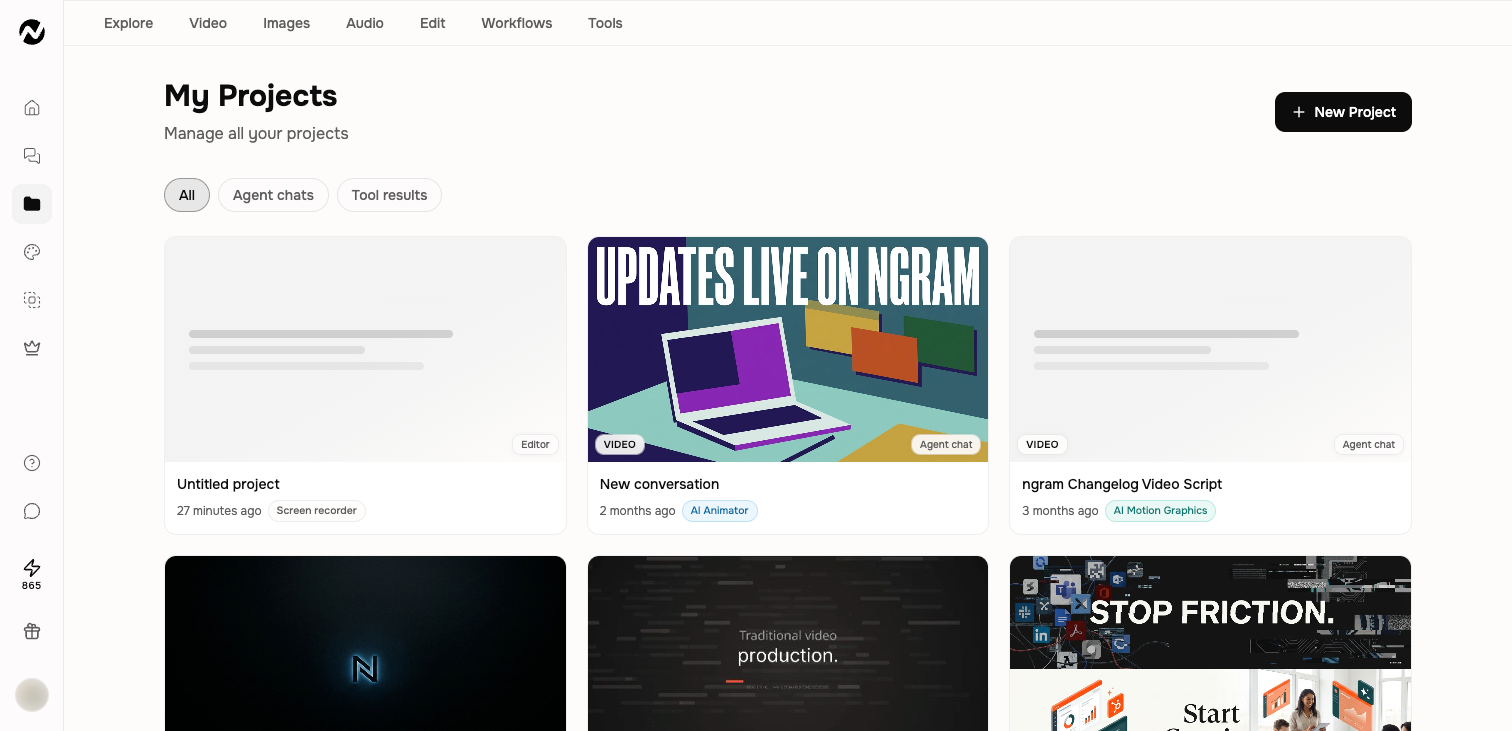
Find a previous project or video
Open Recents from the main sidebar for recently used conversations and Tool runs. If the item is older, choose View all projects or open Projects at /app/projects for the complete filterable view.
Projects filters
- All: every project type available to the current account or team context.
- Agent chats: prompt-first video conversations and their durable history.
- Tool results: outputs from focused one-shot tools.
Reopen, rename, or delete work
- Open the matching card. An Agent chat resumes its conversation and saved video history; an editor project opens its separate editable copy; a Tool result opens the output from that one-shot workflow.
- For an agent conversation, select its title, enter a recognizable name, and press Enter to save it. Include the topic, destination, or version so it is easy to find later.
- Before deleting anything, open it and save any video, source, or link you still need. There is no documented self-serve restore action after deletion.
- When a Delete action is available for an item you own, read the confirmation carefully. Confirm only after checking that you selected the intended item and context.
What you should see
Opening the correct card reopens the saved conversation, project, or Tool-result page. A renamed conversation shows its new title in the list. After a confirmed deletion, the selected item should no longer appear in the current Projects view.
If you still cannot find the work
- Do not recreate or delete anything yet. Check the signed-in account and switch through each team you belong to.
- Open Projects and check All, Agent chats, and Tool results. Also check Recents if you used the item recently.
- Refresh Projects once, then repeat the same filters. If the item is still missing, stop rather than creating replacements that could make the original harder to identify.
Contact Support when
Contact Support when a project is missing from every account or team context, a card opens the wrong work, or a deletion did not produce the expected state. Include the approximate project title, whether it was an Agent chat, editor project, or Tool result, the account or team context, its URL if available, and the last time you saw it. Do not send passwords or private source files.
Team context
When you belong to teams, switch the active account or team context from the account menu before looking for shared work. Users can belong to more than one team; the active context determines which shared projects and assets are visible.
Before you finish
Before leaving, confirm ownership, naming, team context, and any plan or role limitation. Preserve a separate copy before broad revisions and transfer ownership before an owner leaves or deletes a shared workspace.
Projects and history FAQ
Where are my old videos and chat history?
Open Recents for recently used work or Projects for the full list. Check All and Agent chats, then switch to the account or team where the video was created.
Why did my project disappear when I switched teams?
Projects are scoped to the active account or team. Switch back through the account menu, then reopen Projects and check the same filter.
Where is the result from a background remover or another Tool?
Open Projects and select Tool results. Agent chats and one-shot Tool outputs use separate filters even when they started with the same uploaded file.
Can I rename a conversation so I can find it later?
Yes. Select the conversation title, enter a meaningful name, and press Enter. The updated title appears in your conversation list.
Can I restore a project after deleting it?
There is no documented self-serve restore action. Download anything you need and verify the project and active team before confirming deletion.
What should I check before deleting a project made from a reused source?
Open the selected item and save any output, source, or link you still need before confirming deletion. The Help Center does not document dependency behavior between projects, so contact Support first if the same source is important elsewhere.
Keep going
- Understand the agentic workspace — Learn the current chat, storyboard, preview, editing, download, and sharing controls.
- Use the Tools library — Search and use the current Tools library and understand where Tool results are saved.
- Use teams and collaboration — Understand team access, roles, invitations, shared work, credits, and ownership.
- Understand generation status, retries, and recovery — Troubleshoot slow, stopped, failed, or disconnected video generation without relying on fixed time promises.
Continue in ngram
Open the relevant Studio surface and follow the current controls shown in your account.
Was this helpful?
Still need help? Ask the team