Connect and publish to social channels
Connect LinkedIn, X, or YouTube, verify the account and permissions, publish the finished video, and recover without creating duplicate posts.
Written By Anish Muppalaneni
Last updated 12 days ago
Read before this
Check the experience you are using
The detailed controls and screenshots in this guide describe the V1 workflow. V2 (Beta) has a different composer and preview. Use the options shown in your current conversation; do not infer identical file, hosting, or social-publishing support from a V1 screenshot.
Use this when
Use this guide when you want to connect a social account, publish a finished video now, cannot find the expected profile or channel, or a connected-channel publish fails. This workflow covers ngram's beta LinkedIn, X, and YouTube destinations; a Coming Soon channel cannot publish yet. Scheduling remains outside this verified guide.
What this does not do
Connecting a social account does not activate a Coming Soon destination, replace the platform's publishing permissions, or delete posts that already exist when you disconnect. Existing posts are managed on the destination platform.
Before you start
Finish and play the video in ngram first. Sign in to the social account that owns the intended profile, page, or YouTube channel, and confirm you have permission to publish there. Record the ngram project URL so you can diagnose a failure without regenerating or re-uploading the video.
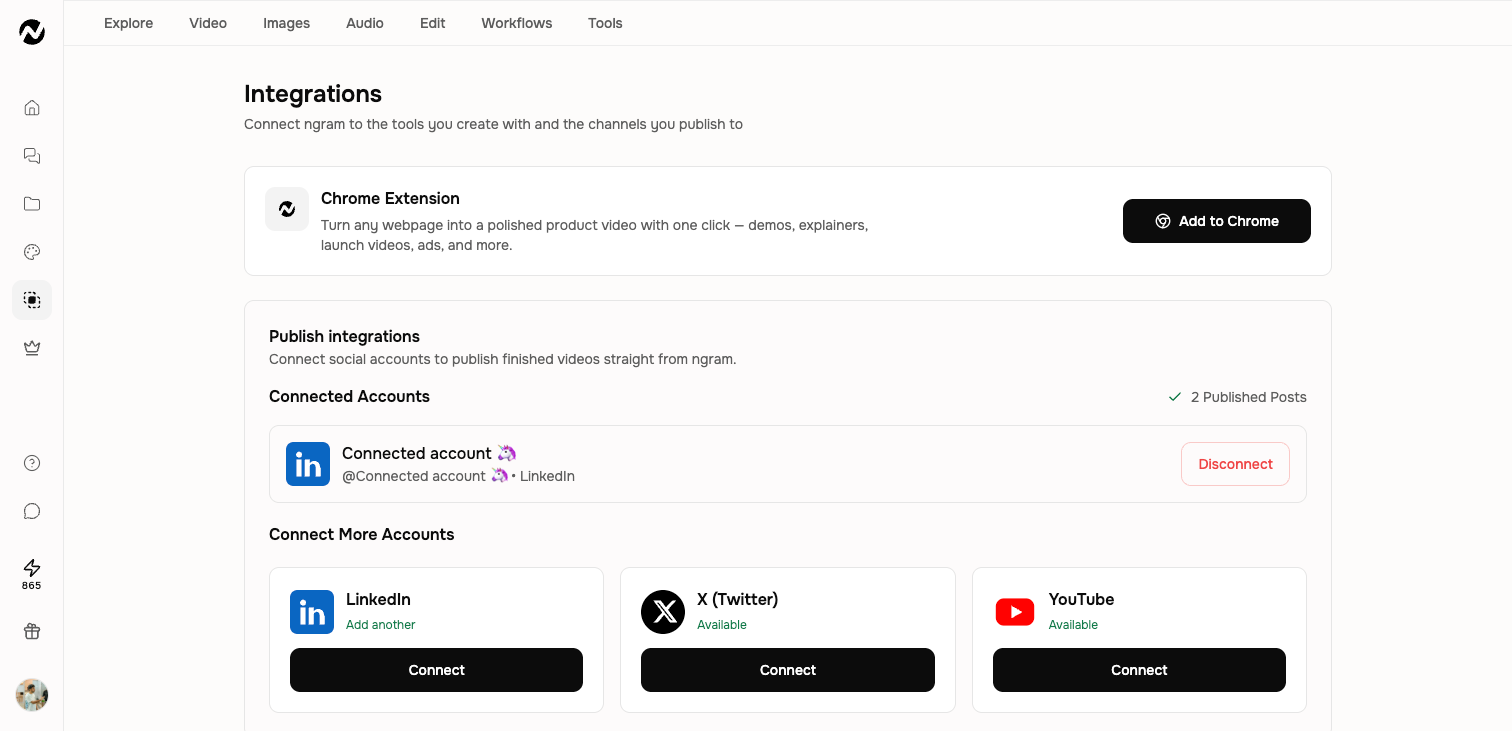
Currently available channels
The deployed Integrations page currently supports LinkedIn, X, and YouTube connections. Other channels may appear as Coming Soon and should not be treated as publish destinations until the Connect action is enabled.
Connect an account
- Open Integrations.
- Find the publish channel and choose Connect.
- Complete the platform's authorization flow, approve the requested publishing permissions, and choose the correct profile, page, or channel.
- Return to Integrations and confirm the account appears under Connected Accounts.
Publish a video
- Open the finished project and choose Share.
- Select LinkedIn, X, or YouTube.
- Review the connected account, exact destination, post copy, timing, thumbnail, and any channel-specific options shown.
- Publish the post, then open the destination platform and verify that it is live on the selected profile, page, or channel.
Disconnect safely
Disconnecting stops future access from ngram but does not remove posts already published on the social platform. Reconnect once when permissions expire or the platform account changes, then verify the intended destination before publishing again.
What you should see
After connection, the account appears under Connected Accounts. A successful publish appears on the selected social destination. Treat the destination platform—not only an in-app confirmation—as proof that the post is live.
If connection or publishing fails
- Keep the ngram project unchanged and record the destination and visible error. Check the destination platform first in case the post succeeded despite a stale ngram status.
- Open Settings → Integrations and confirm that the intended account is still under Connected Accounts. Verify the profile or channel, publishing permission, video readiness, and required post fields.
- If authorization is expired or the account is wrong, disconnect and reconnect that destination once. Retry the publish once only after confirming that no post exists, so you do not create a duplicate.
Contact Support when
Contact Support when one reconnect and one verified retry still fail, the wrong destination receives a post, or ngram and the destination disagree about status. Include the project URL, platform and destination name, approximate time, sanitized error, and whether a post exists. Do not send passwords, access tokens, or private audience data.
Social publishing FAQ
Which social channels can ngram publish to?
LinkedIn, X, and YouTube are currently available in beta. A platform shown as Coming Soon is not an active publish destination.
Why can't I see the profile, page, or channel I need?
Confirm that you authorized the social account that owns that destination and granted publishing permission. If the wrong account is connected, disconnect and reconnect the intended one once.
What should I check before retrying a failed social post?
Check the destination platform first for an existing post, then verify the connected account, exact destination, permissions, and required post fields. Retry once only when no post exists.
Does disconnecting an account delete posts already published?
No. Disconnecting stops future ngram access but does not remove posts already on the social platform. Manage an existing post on that destination.
How do I know a publish really succeeded?
Open the selected profile, page, or channel and verify the post there. An in-app status alone is not a substitute for checking the destination.
Keep going
- Share, embed, publish, and update a video — Use the current Share control and understand the curated Made with Ngram gallery.
- Understand integrations and automation access — Understand social, Chrome, MCP, n8n, Zapier, Make, and API-key availability.
- Download and export a video — Download an MP4 from an agentic video or editor project at the current plan resolution.
Continue in ngram
Open the relevant Studio surface and follow the current controls shown in your account.
Was this helpful?
Still need help? Ask the team