Use sources and attachments
Ground a video in public URLs or permitted files, wait for each upload to finish processing, then tell ngram which sources control facts, structure, narration, and visuals.
Written By Anish Muppalaneni
Last updated 12 days ago
Read before this
Attach a source in V2
Use source material to give V2 facts, wording, or visual references for the video. Have permission to use the file and check that it contains the information your brief refers to.
- Open Home with V2 selected.
- Choose Add files beneath the prompt.
- In Upload Files, choose Upload files to add a file from your device, or select an existing library item.
- Wait for the upload to finish, then choose Confirm Selection.
- Wait for the attachment indicator to appear in the composer.
- Open the attachment indicator to check the selected file, then close the preview and finish the brief.
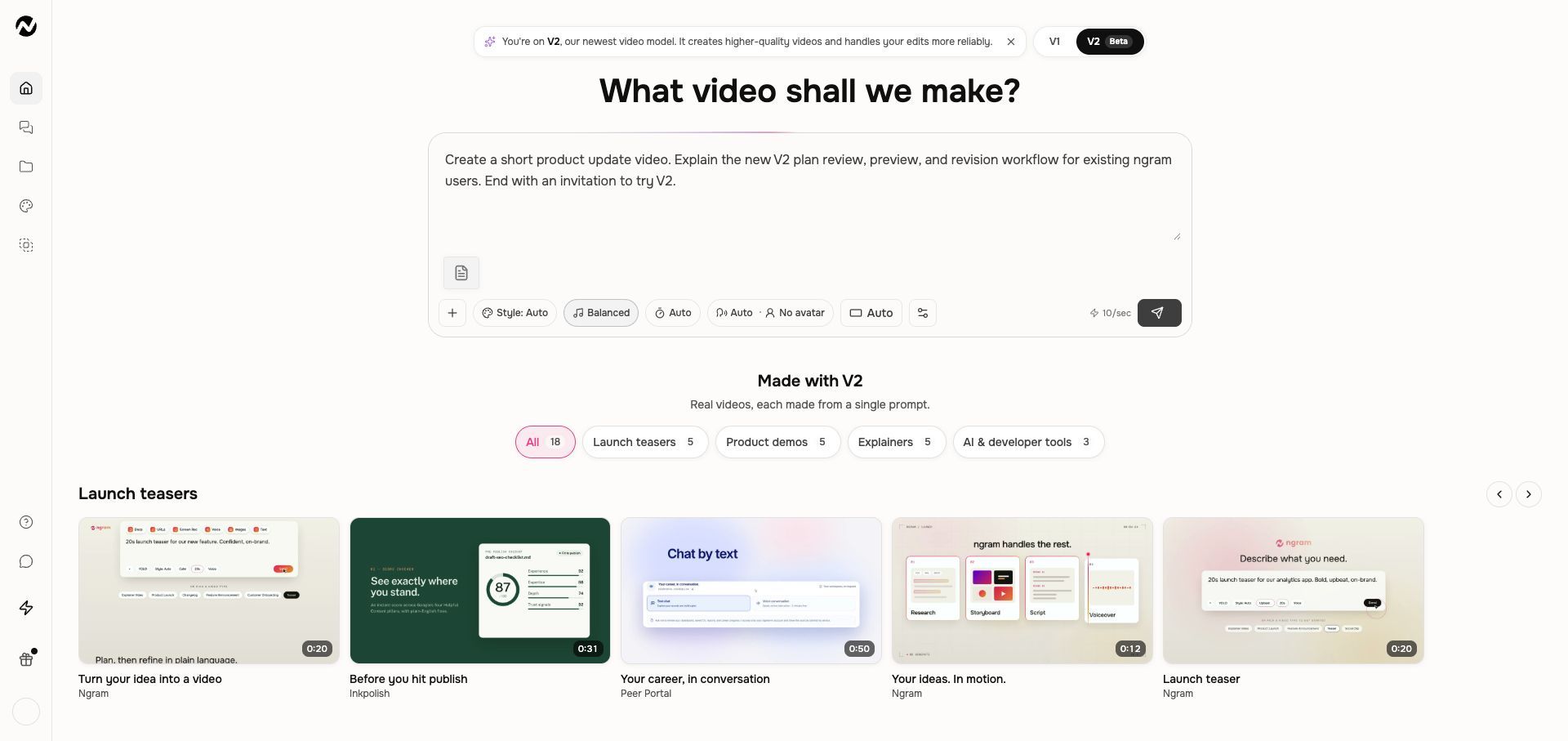
Tell ngram which facts or sections to use and which details to leave out. After submitting, check the proposed script against the source before approving production.
If the source is not ready
Do not submit while attachment processing is active. A file can be attached without having an inline preview; when the preview says it is unavailable, use Open attachment to inspect the file. If upload or processing fails, check the error and retry the attachment before sending the brief.
V1 source workflows
The detailed source types and screenshots below describe V1. Use the file options offered by your current experience rather than assuming identical support in V2.
Use this when a video needs your own source material
Use sources and attachments when a video must follow a specific webpage, document, deck, screenshot sequence, audio file, video, or screen recording. This guide also helps when an upload remains in processing, a source cannot be read, or the result confuses a factual source with a visual reference.
Before you start
Sign in, open Home or the intended conversation, and use files you are allowed to process. Check the file-type, size, duration, plan, and credit message shown by the current upload control; live limits can differ by source type and account.
Ways to add a source
- Paste a public URL into the prompt.
- Use the plus button to upload supported documents, slides, images, audio, or video.
- Use Screen Recorder when the source is a product walkthrough you need to capture now.
- Reuse approved assets from your Studio uploads or Brand Kit when the picker offers them.
Preview files before you send
- When several files are attached, open the compact stack for that file type to review the group.
- Move through supported previews with the arrow buttons, thumbnails, or keyboard controls.
- For a PowerPoint deck or another file without an inline preview, choose Open attachment to inspect the original.
- Wait for conversion to finish before sending. If you remove a file while it is processing, it stays removed when conversion completes.
Tell ngram how to use it
An attachment alone does not explain your intent. Say whether it is the factual source of truth, a visual reference, a narration source, a brand asset, or a recording to polish. When you paste a website, selected page images can also become visual references; name which source should control the look when several options compete.
For several sources, name the priority. For example: use the release notes for facts, the deck for structure, and the screenshots only for product visuals.
Prepare files for reliable results
- Use selectable text in PDFs and decks when possible.
- Put screenshots in the order the workflow happens.
- Trim unrelated pages or recordings before upload.
- Use clear filenames and mention them in the prompt.
- Do not upload secrets, personal data, or material you do not have permission to process.
Review or remove attachments
- Open the current conversation and expand its attachment tray.
- Choose Edit when you need to manage uploaded items.
- Mark the files that are no longer needed, then save the change.
- If a new instruction still depends on a removed file, attach it again or paste the approved facts needed for that request.
Expected result
Each attachment should finish processing and remain visible in the conversation before you submit the request. The resulting script or storyboard should use each named source for the role you assigned: facts, structure, narration, visual reference, or source footage.
If an upload or source does not work
Do not submit while a required file is still processing. Preserve the original, confirm the live file limits, remove unrelated material, and retry that file once. A private or blocked webpage may need to be exported as a supported file, replaced with approved text, or represented by screenshots. If a readable source is used incorrectly, name its role and retry only the affected script, storyboard, or scene once. Contact Support if the same eligible file remains stuck or fails again, or the same clearly assigned source is ignored; include the project URL, approximate time, file type and size or duration, browser, and visible status without attaching private material to the first message.
Sources and attachments FAQ
Why is my upload still processing?
Wait before submitting the request, confirm the file meets the limits shown by the upload control, and retry that file once if processing does not finish. Contact Support if the same eligible file remains stuck or fails again.
How do I make ngram use one file for facts and another for visuals?
Name each role in the prompt—for example, use the document for facts, the deck for structure, and the screenshots only for visuals—and state which source wins if they disagree.
Can I create a video from a PDF, slide deck, screenshots, or recording?
Yes. Add the supported source from Home or the conversation, wait for processing to finish, and explain the outcome and the role that source should play.
What can I do when a private webpage cannot be read?
Export the permitted material to a supported file, paste the approved text, or provide ordered screenshots. Do not share credentials or bypass the page's access controls.
Keep going
- Write a better video prompt — Write prompts that produce stronger scripts, visuals, pacing, and revisions.
- Use Deep Research — Use enhanced visual analysis for websites, PDFs, images, and other visually important sources.
- Record your screen and create a polished screencast — Use the Screen Recorder, browser permissions, recording tips, review, and editor handoff.
Continue in ngram
Open the relevant Studio surface and follow the current controls shown in your account.
Was this helpful?
Still need help? Ask the team