Create explainer videos from GitHub with @ngram-ai
Install the ngram GitHub App, link the ngram account that pays for videos, then mention @ngram-ai on a pull request, issue or release to get a narrated explainer in the thread.
Written By Rishikesh from ngram
Last updated 9 days ago
Read before this
When to use the GitHub App
Use this guide when the change you need to explain already lives in GitHub. Suppose your team merged a CSV export on the reports page and support needs to know what customers will see. Instead of writing a summary, you post “@ngram-ai 30 second video for our support team” on the pull request. ngram reads the change and replies in the same thread with a narrated explainer that support can watch.
Use a different path when the source isn't a pull request, issue or release. If you are starting from a changelog page, a document or a recording, create the video in ngram instead, starting from Create your first video. If you need the same video on a schedule from another app, see Decide when to automate a recurring video.
Before you start
- An ngram account on any plan. Each video uses credits from this account, charged per second. Videos made on an account without a paid subscription carry an ngram watermark and end card.
- Permission to install apps on the GitHub account or organization. In an organization, an owner may need to approve the installation.
- Write access to the repository for anyone who will ask for videos. Mentions from people without write access are ignored.
Step 1. Install the app from GitHub Marketplace
- Open the ngram-ai listing on GitHub Marketplace and choose Install it for free.
- Choose the GitHub account or organization where the app should work.
- Choose All repositories or Only select repositories, then choose Install.
GitHub then sends you to ngram to finish setup. Installing the app costs nothing; you pay only for the videos you ask for.
Step 2. Link your ngram account
- Sign in to ngram if you aren't already signed in. The page is titled Link GitHub to ngram.
- Check the account shown under “Videos are paid from the credits of”. This is the account that pays for every video in this installation.
- Choose Continue with GitHub and confirm your GitHub identity if GitHub asks. This links the installation to your ngram account and lets finished videos play inside GitHub; ngram gets no access to your code from this step.
You'll see GitHub is linked. The person who installed the app must complete this step. If the installation is already linked to your account, you'll see GitHub is already linked with a Manage in Settings button instead.
Step 3. Mention @ngram-ai where the change lives
Write the mention in a new comment or description. ngram reads the thread it is mentioned in:
- Pull request: a new comment, a new inline review comment, or the description when you open the pull request. ngram reads the title, description, changed product code and relevant comments. Tests, CI settings, lockfiles and generated files are left out.
- Issue: a new comment, or the description when you open the issue. ngram reads the issue text and conversation.
- Release: put the mention in the release notes before you publish. Publishing the release starts the request, and ngram uses the release notes as its source.
Adding a mention by editing an existing comment or description doesn't start a video. Post a new comment instead. Mentions inside quoted text or code blocks are ignored.
Step 4. Ask for the video you want
Write your choices in plain words on the same line as the mention. Leave any of them out to get the default.
- Length: any number of seconds from 5 to 120, such as “45 second” or “90 second”. The default is 30 seconds. Write the length as a number.
- Shape: “vertical” for 9:16 or “square” for 1:1. The default is landscape 16:9.
- Audience and focus: for example “for our support team, focus on the new export options”.
- Style or look: name a style such as blueprint or whiteboard, or describe the look you want. Without one, ngram designs the look from the change.
- Voice, mood and pace: for example “calm female voice” or “upbeat”. Without these, ngram picks a voice and pace that suit the thread.
- Narration language: for example “in Spanish”. If you write the whole mention in another language, the narration follows it.
- Presenter: ask for a presenter or avatar on camera when you want one.
For example: “@ngram-ai 40 second video for our readers, blueprint style, calm female voice, in Spanish”. If the linked account has a default Brand Kit, every video uses its logo, colors and fonts without being asked.
Step 5. Wait for the reply, then open the video
Within a few seconds, ngram replies to say it has started, how long the video will be and that the linked account pays for it.
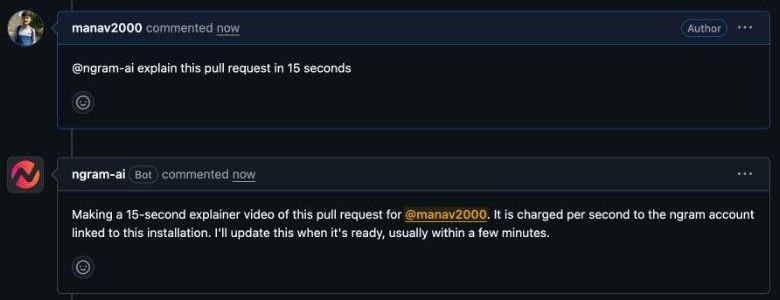
Leave the page; you don't need to keep it open. ngram updates the same reply when the video is ready, usually several minutes later. The finished reply plays the video in the thread and includes Open in ngram to edit. For a release, the video is added to the end of the release notes and attached to the release as a file.
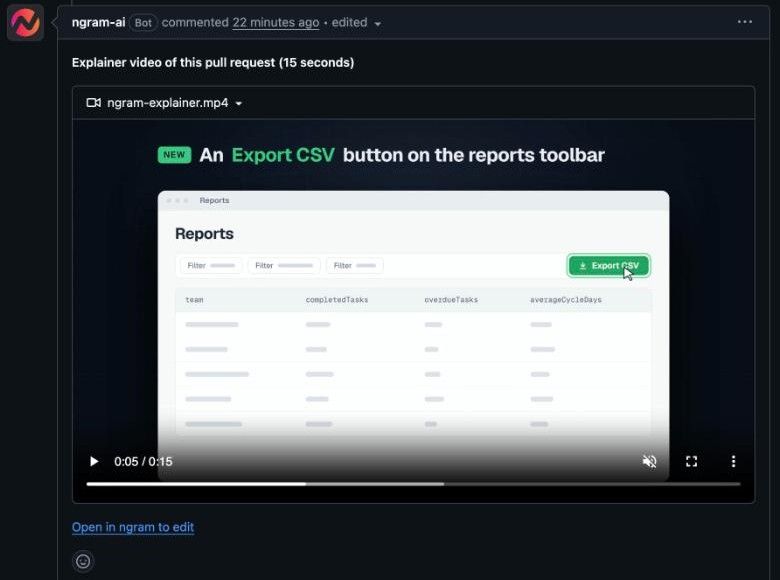
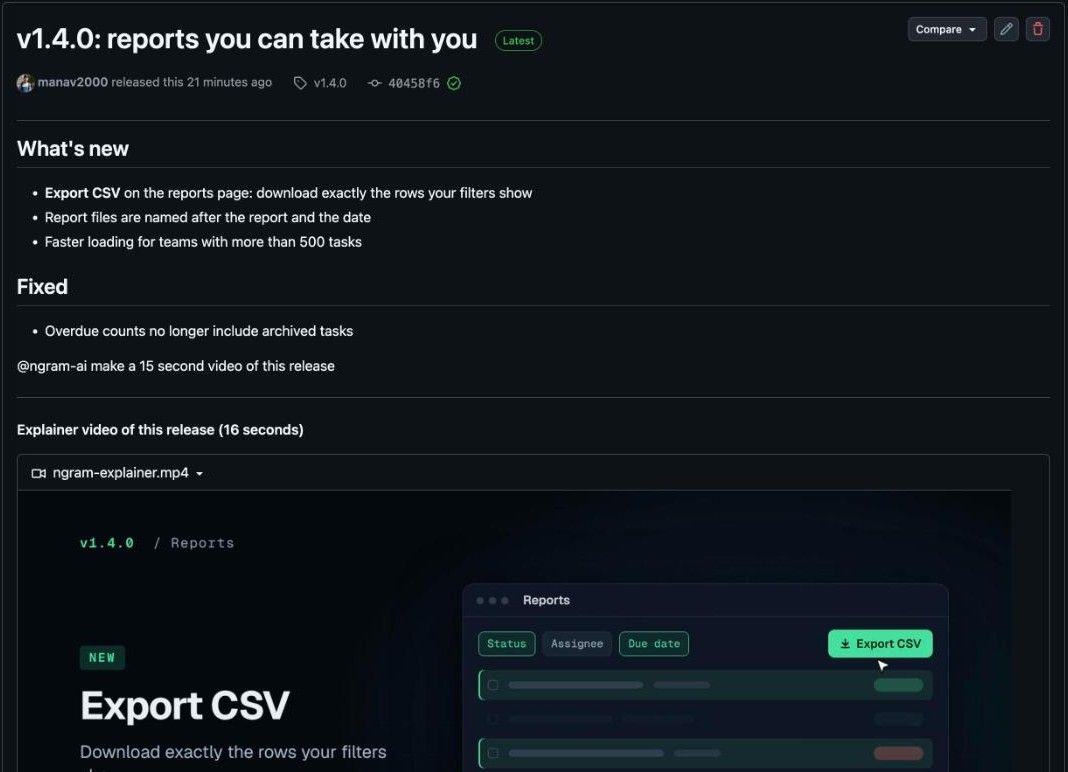
The video length can differ from your request by a second or so to fit the narration. You are charged for the finished length.
Check the result
- Play the video in the reply and check that it explains the change for the audience you named.
- Choose Open in ngram to edit to open the project in the linked ngram account. You can change the script, visuals and voice there, then share or download it according to your plan.
- If something you asked for doesn't appear, for example an accent that isn't available in the chosen language, the project's conversation in ngram explains which closest option was used.
If the video doesn't arrive
Read the bot's reply. It tells you what to do next:
- “This installation isn't linked to an ngram account yet”: the person who installed the app follows the link in the reply, then asks again.
- “The linked ngram account doesn't have enough credits”: add credits in ngram, then post a new mention. Nothing was charged.
- “The linked ngram account can't create videos through integrations on its current plan”: the linked account isn't currently allowed to create videos this way. Contact ngram support with the repository and time of the request. Nothing was charged.
- “I can't make a video from this content”: the content was declined and nothing was charged.
- “Something went wrong while making this video”: post a new mention to try again.
- No reply at all: check that you have write access to the repository, that the mention is in a new comment rather than an edit, and that the app is installed on this repository.
Each new mention is a separate request and a separate charge, so post one at a time. If the video can't be uploaded to GitHub, the reply links to it instead; anyone with that link can open it.
Unlink an account or remove the app
To stop new videos from being charged to your ngram account, open Settings in ngram, choose Integrations, find the GitHub section and choose Unlink on the account.

Unlinking stops new videos on that GitHub account. To remove the app itself, uninstall it from the GitHub account or organization settings, under Applications.
What to do next
To turn a technical change into a customer-ready explanation, read Make a technical feature launch video. To keep every video on brand, set a default kit in Brand Kit.
GitHub App questions
Does the app run on every pull request?
No. It only acts when someone with write access mentions @ngram-ai in a new comment, a new description or release notes. Each mention makes one video.
Can people outside my team spend my credits?
No. Mentions from people without write access to the repository are ignored, so a public repository can't use your credits.
Which ngram plan do I need?
Any plan works. Each video uses credits from the linked account. Videos made on an account without a paid subscription carry an ngram watermark and end card.
How long does a video take?
ngram replies within seconds, then updates its reply when the video is ready, usually several minutes later. Longer videos and busy periods take longer.
Keep going
- Understand credits — See how per-second charges and top-ups work for the account linked to GitHub.
- Integration access — Compare GitHub with the other ways to start a video from another app.
- Set up a Brand Kit — Make every @ngram-ai video use your logo, colors and fonts.
- Make a technical feature launch video — Turn an engineering change into a launch video for customers.
Install the ngram GitHub App
Read how the integration works, then install it from GitHub Marketplace and mention @ngram-ai on your next pull request.
Was this helpful?
Still need help? Ask the team