Work with the timeline
Navigate pages and tracks, move the playhead, adjust supported items, and review timing in both inline and full-editor timelines.
Written By Rishikesh from ngram
Last updated 9 days ago
Read before this
Choose the matching experience
This guide describes the V1 workflow and its available controls. For V2 (Beta), start from Home, review the plan, and request revisions through chat or Make changes. Do not assume the V1 controls shown here are available in V2.
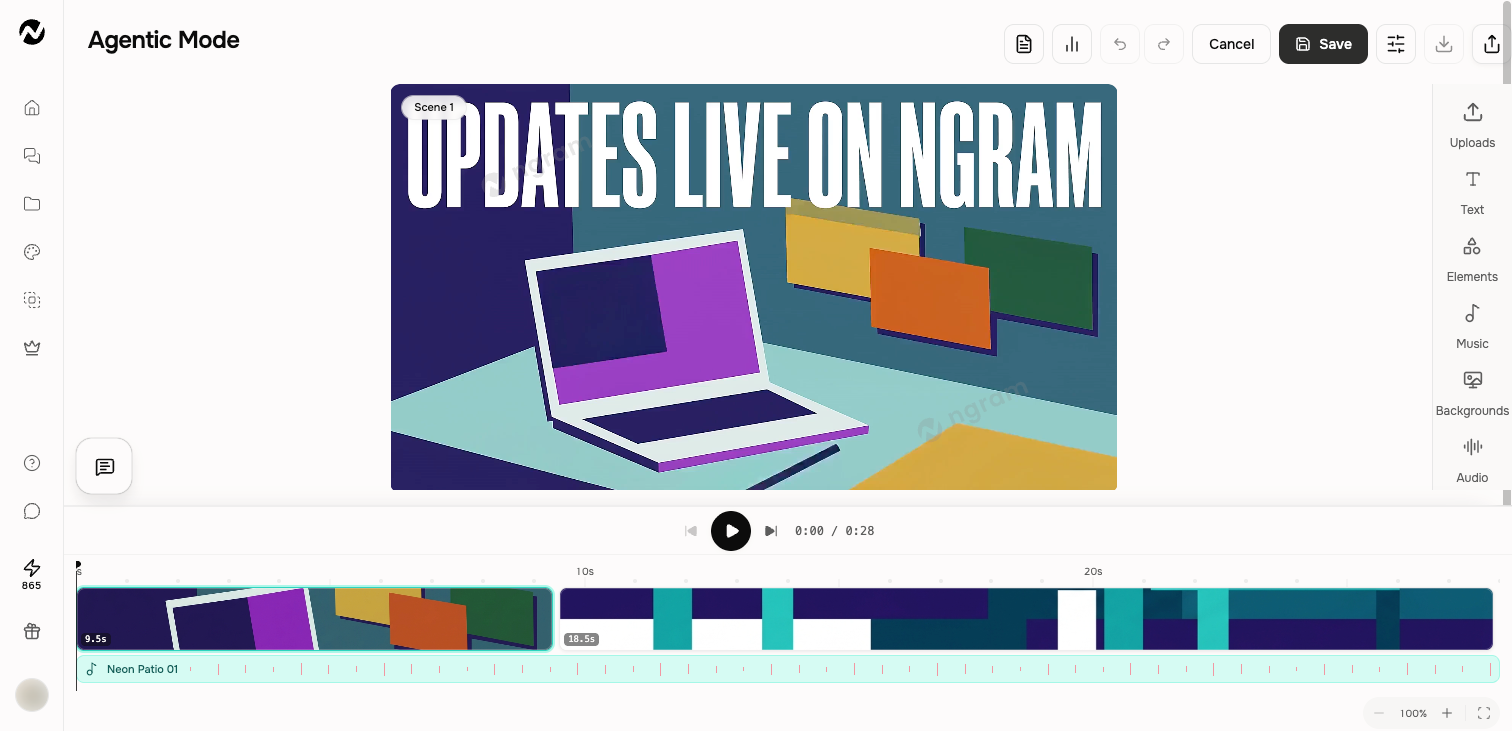
Two timeline contexts
The inline agentic timeline is optimized for the scenes in the current conversation. The full editor timeline supports a broader set of page and media tracks. Controls can differ, so follow the timeline visible in the workspace you opened.
Core controls
- Play, pause, and move the playhead.
- Select a page, scene, or track item.
- Zoom in, zoom out, or fit all pages.
- Resize or move an item only when the selected item permits it.
- Use timeline settings for the controls exposed by that editor.
Review timing safely
- Play from a few seconds before the edit.
- Check the cut or transition at the scene boundary.
- Confirm narration, captions, music, and visual timing remain aligned.
- Save, then replay the final range before export.
Locked and generated items
Some generated, watermark, outro, or system-managed items can be locked or constrained. If a direct trim or move is unavailable, request the change in chat or use the control designed for that item instead of forcing a timeline operation.
Before you finish
Before export, save the current project, replay the affected range and final CTA, and verify whether a public link needs to be updated. Keep independently created editor copies clearly named because they do not synchronize with the conversation.
Keep going
- Edit inside an agentic conversation — Edit scene content, layers, media, audio, interactivity, and timing inside a conversation.
- Use the full video editor — Understand the full editor and how it differs from inline agentic editing.
- Adjust music, voiceover, captions, and sound — Change captions, background music, narration, and sound-effect settings.
Continue in ngram
Open the relevant Studio surface and follow the current controls shown in your account.
Was this helpful?
Still need help? Ask the team