Create a product try-on video
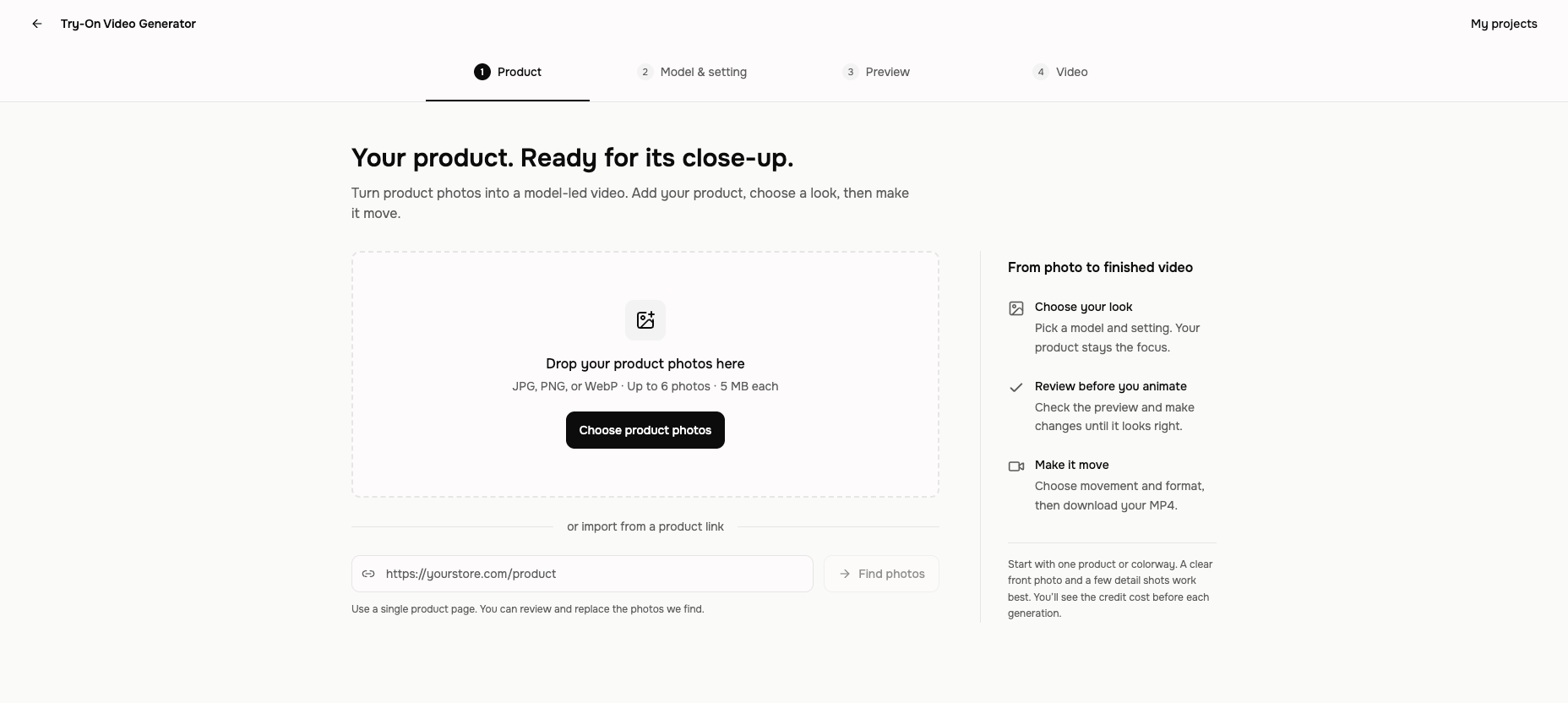
Add product photos or a product page, choose a model and setting, approve the still image, then turn it into a downloadable MP4. Your choices and completed versions stay with the project while you move through the four steps.
Written By Anish Muppalaneni
Last updated About 1 hour ago
Read before this
Use Try-On Video Generator when you have one product or colorway and want to show it on a model without beginning in the general video workspace. The guided path is Product → Model & setting → Preview → Video.
Before you start
- Sign in to ngram. The generator creates a saved project and shows the current credit cost before each image or video generation.
- Prepare at least one clear product photo, or a public product-page URL. A front view is the best starting image; extra angles can help preserve details, color, and fit.
- Use photos of a custom model only when you have permission to use that person's likeness.
Create the try-on
- Open Tools, choose Try-On Video Generator, then upload product photos or paste one product-page URL and select Find photos.
- In Product, select the photos that belong to the same product and colorway. Open a photo's menu to mark the main photo, and add an optional product name.
- Select Choose model & setting. Pick a model from the gallery or upload a permitted model photo. Choose a background when the Background tab is available, then select Review your look.
- In Preview, confirm the product, model, and setting in Your look. Review the credit amount on Generate preview, then create the image.
- Inspect the full-size preview and use Compare original when you need to check the product against its source. Add a short correction and select Update preview if the result needs work.
- Select Approve & continue only when the image is ready to animate. Approval makes that image the source for the Video step.
- Choose a movement preset, Portrait, Square, or Landscape output, and one of the displayed durations. Add optional movement direction, review the credit amount on Generate video, and start the job.
- Play the finished version, then select Download video to save the MP4. Use Make another video when you want a new motion or format from the same approved image.
What saves with the project
The header reports Saving, Saved, or a save error while you work. Product references, model and setting choices, approved images, video settings, and completed versions return when you reopen the try-on project. Older images and videos remain available in their version strips even after you change the current look.
If something does not work
- If a product link cannot be imported, keep the project and upload the missing photos instead. Review the selected photos before continuing.
- If Unable to save appears, keep the page open and select Retry saving. Do not generate again until the header returns to Saved.
- If a generation fails and Try again is available, use it once in the same project. A previous completed image or video remains available while recovery runs.
- If ngram reports insufficient credits, stop and review the displayed amount before buying credits or changing the selected duration.
Expected result
The Video step shows a playable model-led try-on made from the approved image, with a Download video action and a saved version in the same project. Reopening that project from Projects returns to the guided generator instead of starting over.
Try-On Video Generator FAQ
Do I need a product-page URL?
No. Uploading a clear product photo is a complete starting path. A public product-page URL is an alternative that lets ngram find candidate product images for you to review.
Can I change the model or background after creating an image?
Yes. Return to Model & setting, make the change, and generate a new compatible preview. Earlier completed versions remain available, but you must approve a current image before generating a new video.
Why can't I open the Video step?
The Video step becomes available after you approve a completed preview image, or when the project already contains a video version. Return to Preview and select Approve & continue on a current result.
Does downloading approve an image?
No. Downloading or comparing an image does not approve it. Select Approve & continue when you want that image to become the source for video generation.
Will my choices be there when I return?
Yes, after the header reports Saved. The project keeps its current selections, approved image, video settings, and completed versions. If saving fails, use Retry saving before leaving the page.
Keep going
- Use the Tools library — Find focused creation and editing workflows and understand where their results are saved.
- Manage projects and Tool results — Reopen, rename, filter, and safely remove saved work.
- Understand credits — Review estimates, charges, recovery, and top-ups before generating again.
- Download and export — Choose the right saved result and confirm the finished file before sharing it.
Put your product in motion
Start with one clear product photo, approve the look, and create a downloadable try-on video.