Use teams and collaboration
Invite members, choose the active team, share conversations and assets, understand roles and paid access, and transfer ownership before a team is removed.
Written By Rishikesh from ngram
Last updated 9 days ago
Read before this
Give a colleague access to the workspace
A new editor needs to work with the team’s projects and shared assets. Confirm the active team and the role they need before inviting them. Check ownership before removing a team or member.
A customer who only needs to watch the finished lesson generally needs a sharing link appropriate for that audience, rather than workspace membership. Send a viewer link.
Choose the workspace before editing (illustrated guide)
Use this guide when an invitation is not working, a teammate cannot see a project, the wrong workspace is open, or you need to understand owner, admin, member, or paid-plan permissions. Team access is separate from a personal workspace, and the active context determines which conversations, projects, Brand Kits, and assets are visible.
What this does not do
Joining a team does not merge the member's personal projects into the team, expose every personal conversation, or automatically give that member paid access. Workspace access, role, and each account's plan are separate states.
Before you start
Each person should use their own ngram login. Owners and admins can manage members and invitations; members can use the shared workspace and can share their own conversations with the team. Check the role and any plan requirement shown in Settings → Team before attempting an owner- or admin-only action.
Team availability
Users can belong to multiple teams. Open the account menu and choose the intended personal or team workspace before creating or looking for work. The selected context controls which shared projects and assets you see; joining a team does not merge a personal workspace into it.
Roles
Owner: controls ownership, deletion, billing-related team actions, and the highest-risk settings.
Admin: manages permitted team configuration, members, and invitations.
Member: uses the shared team context and resources allowed by the team.
Invite a member
Open Account and teams and select the team you want to manage.
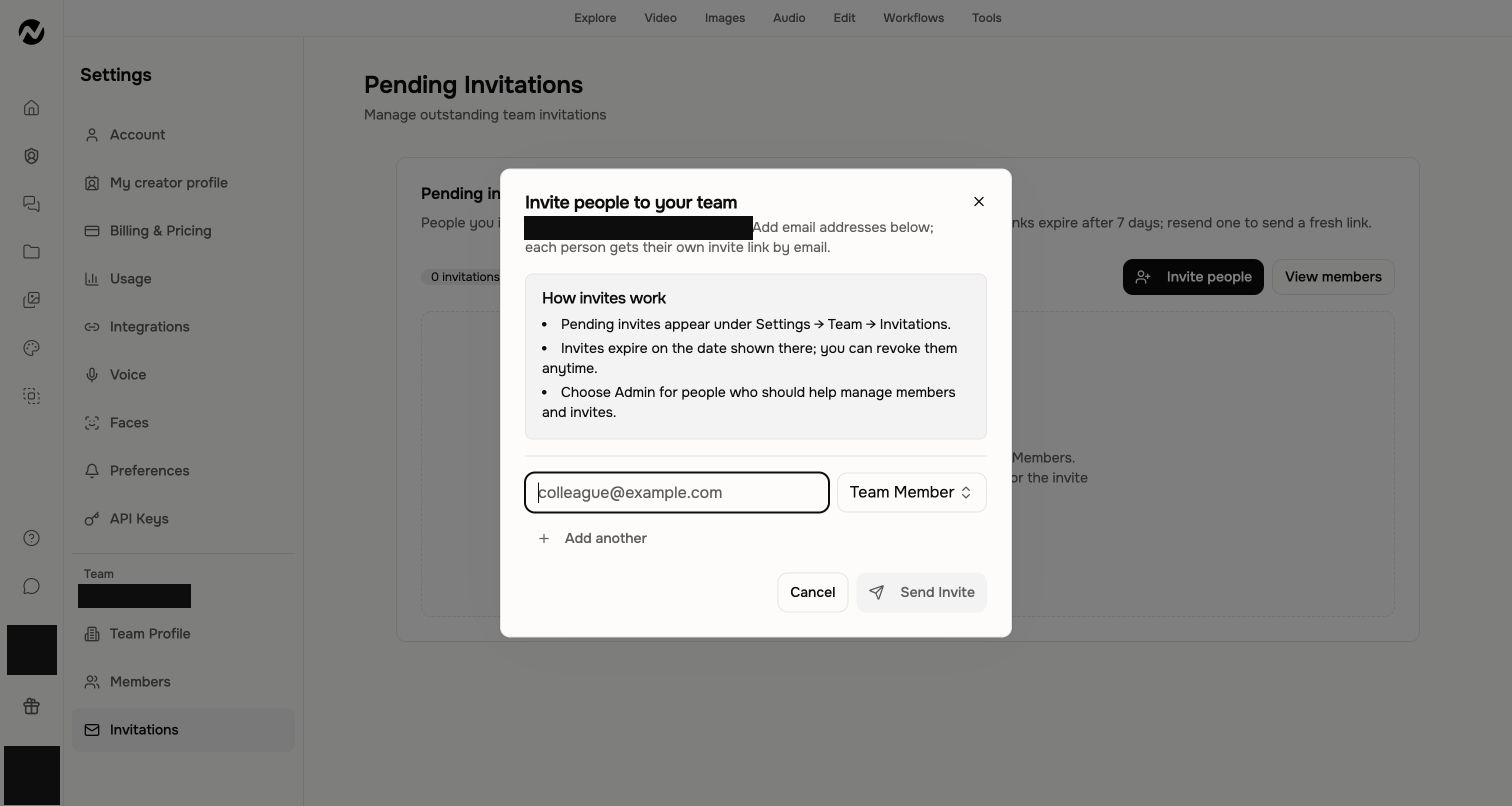
Choose Account & Settings. Under Team, choose Invitations to open Pending Invitations.
Choose Invite people. The Invite people to your team dialog opens.
Enter the person’s email address, choose Team Member or Admin, then choose Send Invite.
Ask the recipient to sign in with the invited email and accept the invitation while it remains active.
Confirm that the person appears in Team Members, then have them select the team from the account menu.
Share a conversation and find team work
In a conversation you own, open the ⋮ menu and choose the Share with option that names your team, such as Share with Training. Any team member can share or unshare their own conversation.
The conversation becomes visible in the active team's shared project list. Sharing lets teammates view it; it does not move unrelated personal conversations.
Team Brand Kits, approved identity assets, and team uploads are available only while the team is the active context.
Use the personal/team media filters when a shared upload appears missing, and check Projects for the shared conversation before uploading a duplicate.
Organize shared videos in team folders
Use team folders when several people share videos with the team and the list gets hard to scan. For example, a training team can keep a folder per course so every trainer finds the current lesson in the same place. Every member of the team sees the team's folders and can organize them.
Open Projects and choose the tab with your team's name. It lists every Agent chat shared with the team and who shared it.
Choose New folder, type a Folder name and choose Create folder.
Drag shared videos onto the folder, or open the folder and choose Add projects. Folders can hold other folders, and Move to folder works here as it does on My Projects.
From My Projects, you can file your own Agent chat straight into a team folder: choose Move to folder and pick a folder under your team's name. This shares the chat with the team. Only Agent chats can be shared with a team, so other project types stay where they are.
To stop sharing one of your videos from the team tab, open the More options menu on its card there and choose Stop sharing. The Unshare from option that names your team, in the conversation's own ⋮ menu, does the same thing. It leaves the team tab and stays in your own projects.
Team folders never change anyone's personal folders. Deleting a team folder asks you to type its name, and the videos in it move up one level. They stay shared with the team.
Understand team access and paid plans
A team invitation grants workspace access; it does not by itself grant a paid plan or paid seat. Check the plan and any plan controls shown for the member in Settings → Team. If the account does not show the paid-access option your team expects, stop and contact Support rather than assuming the invitation changed billing.
Ownership, removal, and deletion permissions
The owner controls ownership transfer, team deletion, and the highest-risk team and billing actions. Admins manage permitted settings, members, invitations, and roles. Members use shared resources and manage the conversations they created. Transfer ownership before the current owner leaves or deletes the team, and save required project links and outputs before removing access. Each of these actions asks you to type a word in a box before it runs: the team's name to delete or leave a team, remove to remove a member, transfer to transfer ownership, and revoke to cancel an invitation.
What you should see
An accepted invite places the person in Team Members. After they select the team, shared conversations, Brand Kits, and team assets appear in that context. Role or plan changes should appear in the relevant account or team settings before either person treats the change as complete.
If an invite or shared project is not available
Confirm that the recipient signed in with the invited email and that the sender still sees an active invitation in the team invitation list.
For missing work, have both people select the same team, then check Projects and the team/personal media filters before recreating or re-uploading anything.
If the invitation expired, an owner or admin can send one new invitation. If the new invite or the shared item still does not appear, stop and preserve the original project.
Contact Support when
Contact Support when a current invitation cannot be accepted, the same team is active but shared work remains missing, a role or paid-access state looks wrong, or ownership cannot be transferred. Include the team URL, each person's role, the affected project URL when available, the visible message, and the approximate time. Do not send passwords, payment details, or private assets.
Teams and collaboration FAQ
Why can't my teammate open our video or see the project I shared?
Make sure you used the Share with option that names your team, from the conversation's ⋮ menu, and that both people selected the same team in the account menu. Then check Projects in that team context.
Why does my team invitation not work?
The recipient must sign in with the invited email and accept while the invitation remains active. If it expired, an owner or admin can send one new invitation; contact Support if the replacement also fails.
What is the difference between an owner, admin, and member?
The owner controls ownership, deletion, and the highest-risk team and billing actions. Admins manage permitted settings, members, invitations, and roles. Members use shared resources and manage their own conversations.
Does inviting someone automatically give them a paid seat?
No. Team membership and paid access are separate. Check the plan and any available plan controls shown for the member in Settings → Team. Contact Support if the paid-access state does not match what your team expects.
Can I belong to more than one team?
Yes. Use the account menu to switch contexts. Projects, conversations, Brand Kits, and assets change with the active personal or team workspace.
Who can share a conversation with the team?
Any team member can share or unshare a conversation they own from its ⋮ menu, using the Share with or Unshare from option that names the team. This shares that conversation into the team context without moving unrelated personal work.
What should happen before the team owner leaves?
Transfer ownership first and verify the new owner in Team Members. Save any required project URLs and outputs before removing the previous owner's access or deleting the team.
Can my team organize shared videos into folders?
Yes. Open Projects and choose the tab with your team's name. Any member can make team folders there and drag shared videos into them, and everyone in the team sees the same folders.
Keep going
Manage projects, conversations, and Tool results — Find, reopen, filter, rename, and delete work in the current Projects experience.
Set up a Brand Kit — Create, import, and manage personal or team Brand Kits and current plan limits.
Understand plans and pricing — Review current Free, Basic, Premium, Ultimate, and Enterprise plan behavior.
Continue in ngram
Open the relevant Studio surface and follow the current controls shown in your account.
Was this helpful?
Still need help? Ask the team