Review your usage history
See available and used credits, inspect human-readable activity, open the related project, and review the last 30 days of usage.
Written By Rishikesh from ngram
Last updated About 1 month ago
Read before this
Use this guide when
Use Usage when you need to explain a credit charge, confirm whether a failed or incomplete operation consumed credits, or gather evidence because a purchased balance is missing. Usage is a record of activity; it cannot approve a refund or restore credits.
Before you start
Open Account & Settings → Usage and confirm the active account or team. Keep the affected project or conversation URL and approximate event time available.
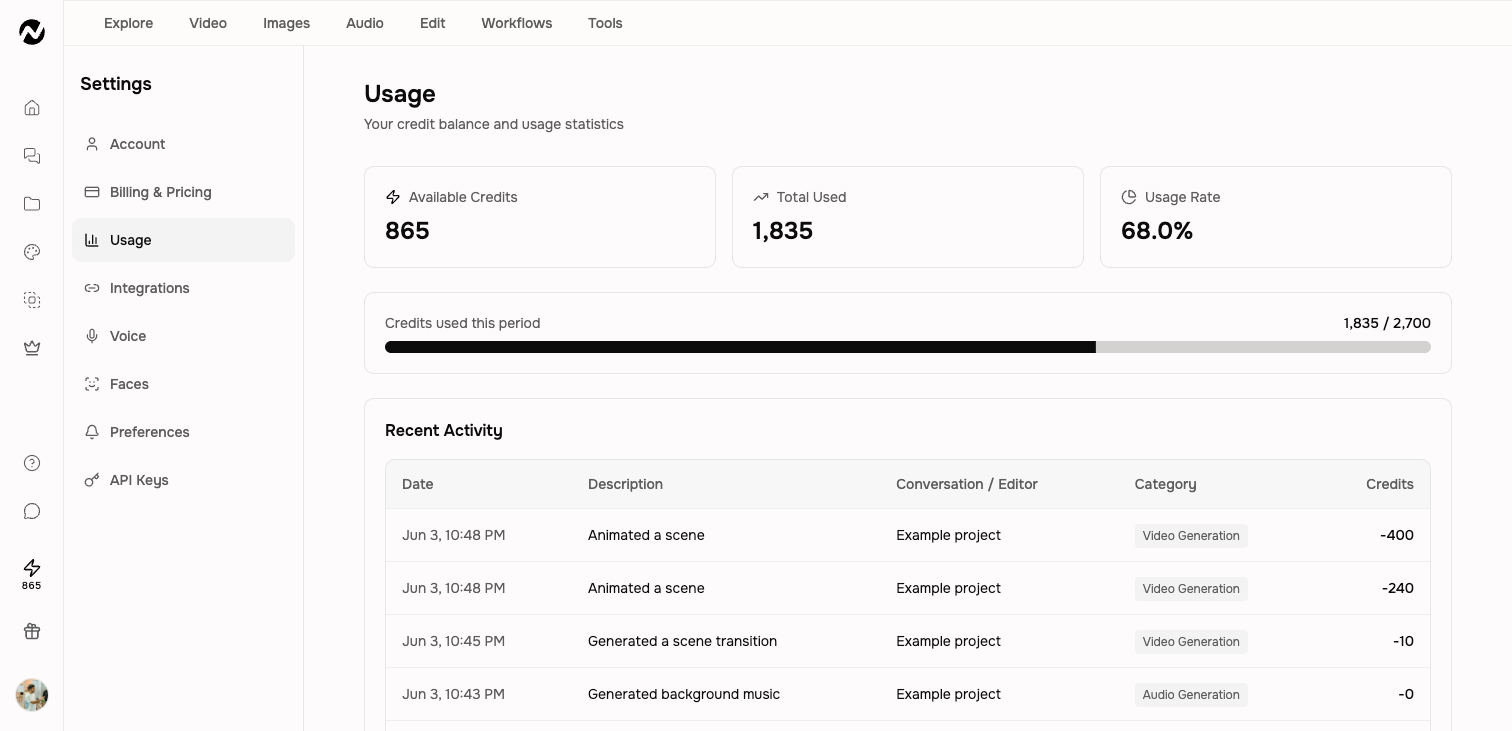
Summary cards
- Available Credits: the balance currently available to new work.
- Total Used: credits consumed in the active period.
- Usage Rate: the share of the period's available allocation already used.
Recent activity
Each row includes the time, a human-readable description such as Wrote a script or Animated a scene, the related conversation or editor, a category, and the credit amount. A zero-credit row can represent an included or free operation rather than an error.
Investigate a charge
- Find the event by time and description.
- Open the linked conversation or editor when a link is present.
- Compare the selected model, duration, and number of generated scenes with the activity rows.
- Use pagination or the 30-day chart for older activity.
Get help
If the activity still does not match the work you ran, or a failed result has a charge, do not run the same charged operation again. Contact Support with the event time, description, amount, linked project URL, visible failure state, browser, and whether one retry was already attempted. Credit and refund outcomes are reviewed case by case. Do not send an API key, payment-card number, or other secret.
Before you finish
You should finish with the matching activity row, amount, and related project identified. Save receipts or project URLs needed for later review and recheck the live confirmation state. Do not rely on a price, reward, limit, or renewal rule copied from an old screenshot.
Usage history FAQ
Why were credits charged when my generation failed?
Open Usage and match the event time, description, amount, and related project. Do not repeat the charged operation while it is unclear. Request a case-by-case review if the output failed or remains incomplete; reimbursement is not guaranteed.
How do I find what used my credits?
Open Account & Settings → Usage, locate the row by time and description, and open the linked conversation or editor when available. Compare the model, duration, and generated scenes with the recorded events.
What should I send Support about a credit event?
Send the project URL, approximate time and timezone, Usage description and amount, visible status or error, browser, and whether one retry was attempted. Never send card details, passwords, or API keys.
Keep going
- Understand credits — Understand credit estimates, reservations, charges, plan grants, top-ups, and auto top-up.
- Understand plans and pricing — Review current Free, Basic, Premium, Ultimate, and Enterprise plan behavior.
- Understand generation status, retries, and recovery — Troubleshoot slow, stopped, failed, or disconnected video generation without relying on fixed time promises.
- Request a billing review or refund — Prepare a billing or credit-review request without assuming a refund is guaranteed.
Continue in ngram
Open the relevant Studio surface and follow the current controls shown in your account.
Was this helpful?
Still need help? Ask the team