Revise a generated video
Give useful feedback to ngram with a location, an exact change, and what to preserve. Follow the V2 chat or Make changes workflow, with separate V1 instructions below.
Written By Rishikesh from ngram
Last updated 9 days ago
Read before this
For a V2 video, request revisions in the existing conversation. Use Make changes when you want to point to a moment in the preview; use chat for a change that affects the whole video.
Before you revise in V2
Open your own completed V2 conversation and wait for any active request to finish. Revisions can consume credits. Review the selected output before sending another change.
Request a V2 revision
- Play the video and pause near the moment you want to change.
- Choose Make changes, then use Pin a change at the current moment or click the frame. You can also type a revision directly in Message Ngram.
- Name the change and what should remain. For example: “Keep the opening. Hold the closing message longer so there is time to read it.”
- For a pinned request, choose Add to chat, review the queued request, then choose Send message. Adding it to the queue alone does not submit it.
- Wait for the next result, then replay the changed section and its neighboring scenes.
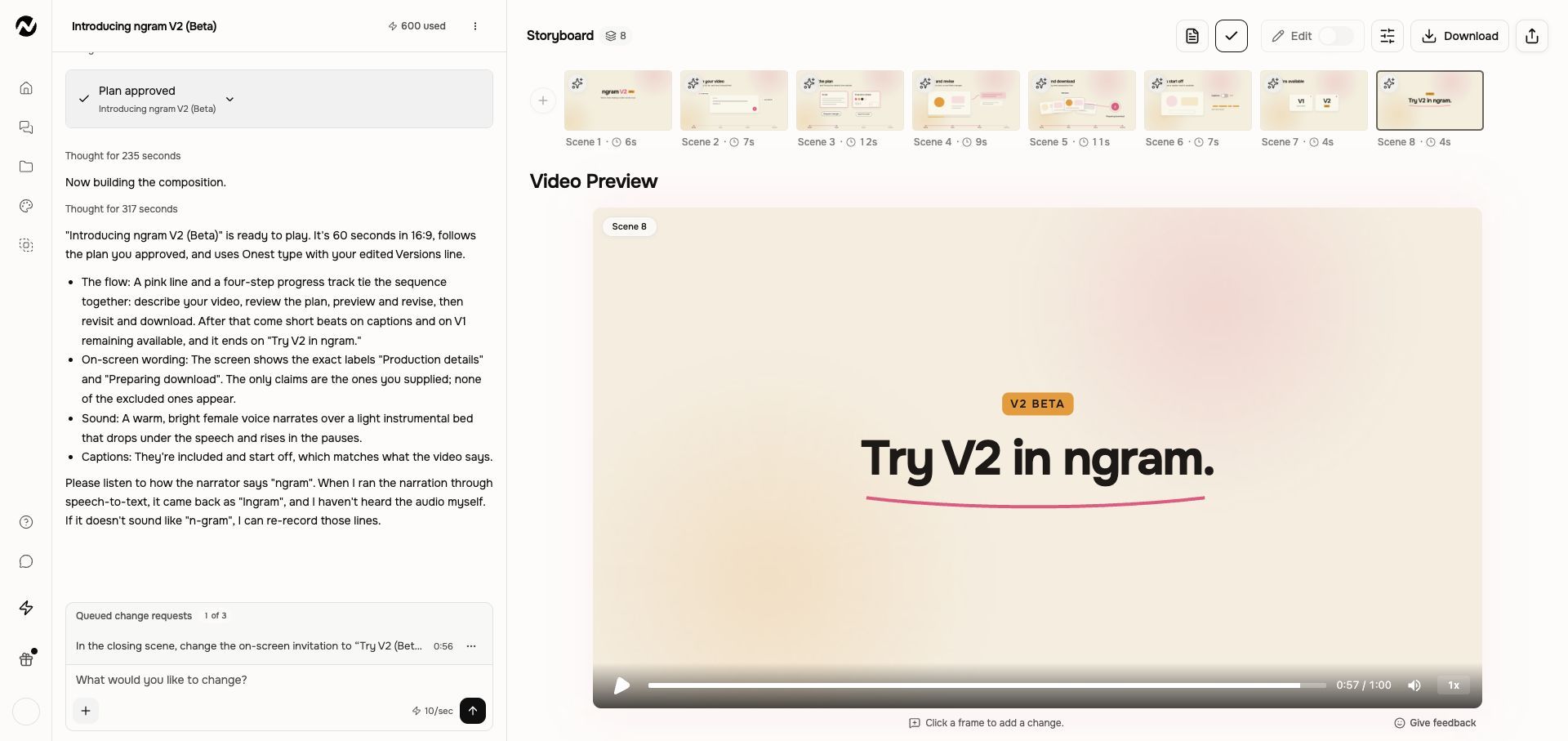
When multiple outputs exist, use Versions to inspect earlier results. Selecting an older output lets you view or download it; it is not a restore action.
Give useful feedback to ngram
For a video edit, give ngram three things: the location, the desired change, and what should stay. “Make it better” leaves the next decision open; “At the closing card, replace the headline with ‘Book a demo’ and keep the colors and earlier scenes” gives you a change you can verify.
Choose plan feedback or preview feedback
Use Request changes during plan review for the audience, message, factual claims, script, and scene order. Read Script and Production details again before choosing Approve plan. Use the finished preview to judge pacing, legibility, pronunciation, and whether the picture supports the narration.
A revision template to copy
At [timestamp or named scene], [describe the observed problem]. Change [specific element] to [desired result or exact replacement wording]. Keep [parts already working]. The priority is [constraint]; if needed, [acceptable tradeoff].
Examples of useful video feedback
- Factual correction: “In scene 2, replace the export claim with the exact wording in the attached product sheet. Keep the layout and scene order.”
- Readability: “In the receiving sequence, hold the scan, label, and storage labels longer. Keep the procedure order and box illustrations. If the runtime must stay fixed, shorten the opening.”
- Story: “Explain the barcode mismatch before introducing the product. Keep the final CTA and the approved facts.”
- Tone: “Keep the steps, but explain them for a new warehouse employee. Define receiving before using the term again.”
- Pronunciation: “In the opening narration, pronounce [product name] as [phonetic spelling]. Keep the script wording and visuals.”
Check the next version against the request
- Read your request while replaying the changed section and its neighboring scenes.
- Check that the intended change happened and the parts you asked to preserve are still correct.
- Review facts, on-screen text, narration, music, and the final CTA.
- If the request missed the mark, make one smaller correction. Use Versions to inspect or download earlier outputs; selecting one is not a restore action.
Combine related notes, and resolve conflicting team feedback before sending it. Revisions can consume credits. Avoid resending while a request is active, and contact Support if the same precise correction fails again.
Rate the result or report a product problem
If the request misses the mark
Describe the remaining problem with a location and exact replacement wording where needed. If Make changes is unavailable, check that you own the conversation and that a playable result is selected. Use chat for the request when appropriate.
Give feedback is for feedback about ngram, not an instruction to revise the video. V1 direct-editing controls below are a separate workflow.
V1 workflow
The instructions and screenshots below apply to V1 projects. In V2, use the workflow above; the same direct editing controls may not be available.
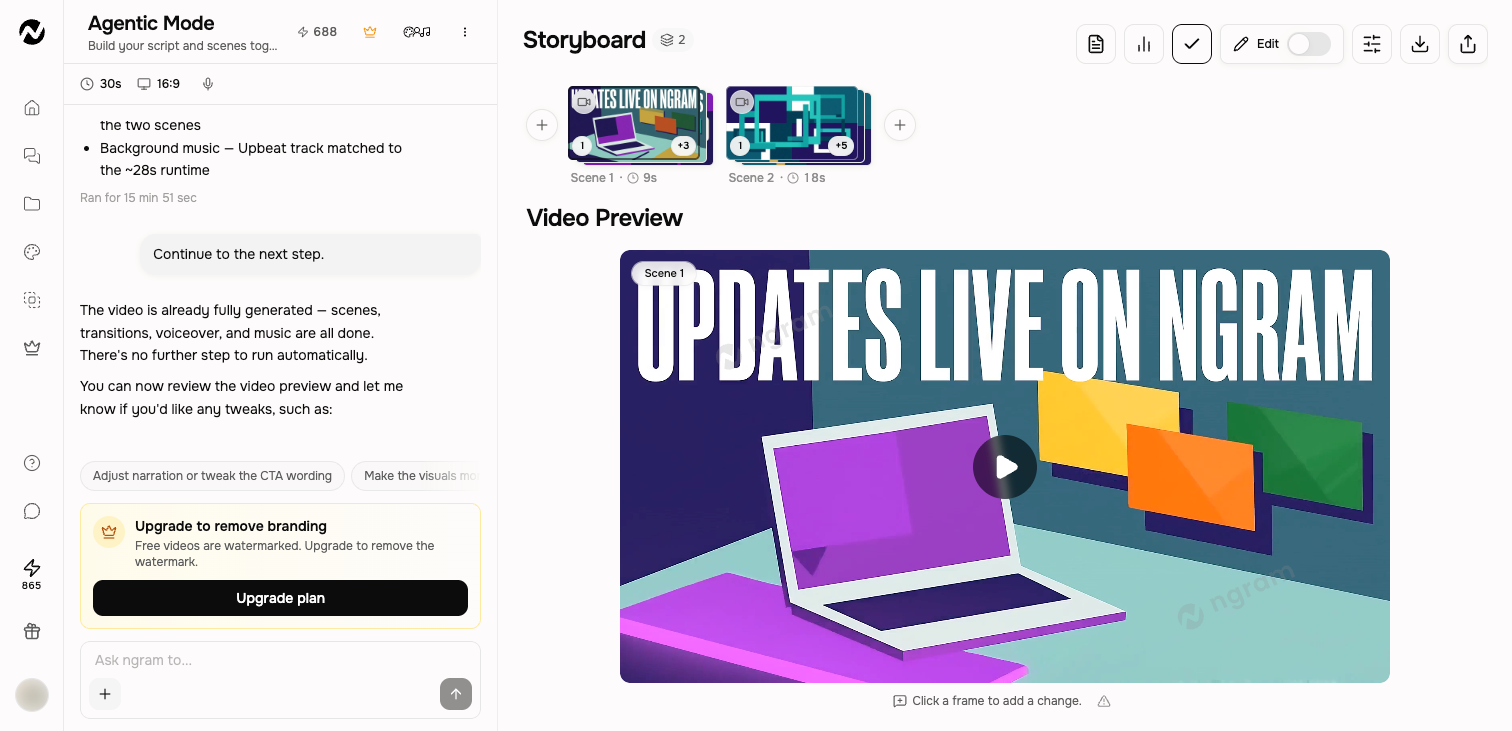
Use this when
Use this guide when you want to change a finished video, make a shorter version without losing the original, repair an edit that was not applied, or recover when a targeted request changed unrelated content. It helps you choose chat, a selected scene or frame, direct narration editing, or an independent editor copy.
This guide does not restore an earlier render as the active project. Versions can preview and download earlier renders, while forks and editor copies preserve separate editable directions when those actions are available.
Before you start
Open the exact conversation from Projects and play the current render. Write down what must change and what must remain unchanged. Before a broad rewrite or shorter variant, use Fork from here when it is available; otherwise keep the existing rendered version available in Versions or create an independent editor copy before changing it. Review the displayed credit estimate before regeneration.
Use chat for creative intent
- Rewrite narration or the CTA.
- Change tone, pacing, scene order, or visual direction.
- Regenerate a named scene while preserving the others.
- Replace music or revise the script structure.
Target the change
Name the scene, the exact change, and what must remain. For example: “In scene 3, shorten the narration to one sentence. Keep every other scene, visual, voice, and CTA unchanged.” Click a frame when the request concerns a visible object, layout, or moment. A narrow instruction reduces unnecessary regeneration and makes the result easier to compare.
Target a Generative Video change
For a Generative Video project, ask in chat or use Make changes and name the scenes that should change. Studio regenerates the affected segments at the existing timing and resolution while reusing untouched clips. The visual Edit workspace is not available for this mode. A project created before clip provenance was recorded may need one fresh render before targeted reuse works.
Make a shorter copy without changing the original
- Open the completed checkpoint you want to preserve and choose Fork from here when that action is available.
- Rename the new branch so it is clearly the shorter version. The original conversation remains separate.
- Ask for the target runtime or the scenes and lines to remove, and explicitly say which visuals, voice, brand treatment, and CTA must stay unchanged.
- Compare the original and shorter branch in Projects before publishing or downloading either one.
Use the right editor
Use the inline Edit workspace for direct changes that should remain part of the agentic project. Use Open in editor when you need the full manual timeline and accept that it creates a separate copy.
Review after every meaningful revision
- Confirm the request completed and the intended scene changed.
- Play through the transition into and out of the edited scene.
- Check narration, captions, music, and total runtime.
- Republish if the public link still points to an older render.
Expected result
The intended scene, narration, or creative direction changes while every named item to preserve remains intact. A fork or full-editor copy appears as a separate project and does not change the original. Save direct edits, replay the affected range and final CTA, and verify whether a public link needs to be updated.
If the edit fails or changes unrelated content
- Do not send another broad instruction. Keep the project URL and note the affected scene and the first timestamp where the result became wrong.
- Open Versions to preview or download the last good render, or return to the untouched fork or editor copy. Remember that Versions cannot restore or revert the working project.
- If the good work is preserved, make one smallest-scope correction: select the affected scene or frame, state the desired change, and list what must remain unchanged. Review any displayed credit estimate first.
- Compare the result with the preserved version. If the correction is not applied or unrelated content changes again, stop and contact Support.
Contact Support after one failed correction
Stop after one targeted correction if the edit remains unapplied, repeats the same error, or overwrites unrelated scenes. Send Support the project URL, approximate time, affected scene or timestamp, exact visible error or unexpected change, browser, whether you made one retry, and whether Usage shows a credit change. Do not delete the affected conversation, fork, or editor copy while it is being investigated.
Video revision FAQ
In V1, how do I make a shorter video without changing the original?
Use Fork from here on the completed checkpoint when it is available, rename the branch, and request the shorter runtime there. The original conversation remains separate. Versions can preserve a downloadable render, but cannot restore it as an editable project.
In V1, why did my edit change other scenes?
Broad requests can affect a wider scope than intended. Preserve or download the last good result, then make one correction that names the scene, the exact change, and everything that must remain unchanged. Stop and contact Support if unrelated content changes again.
In V1, i asked for a change, but nothing changed. What should I do?
Confirm the request completed, then compare the named scene with the previous result. If the good version is preserved, try one smaller, scene-specific correction. If it still does not apply, contact Support with the project URL, time, instruction, browser, and any credit change.
In V1, should I use chat or Edit → Script for narration?
Use chat when you want a creative rewrite, tone change, or broader story adjustment. Use Edit → Script for exact scene-by-scene wording while keeping the visuals; a larger timing change may require regenerating that scene.
In V1, does Open in editor keep syncing with the conversation?
No. Open in editor creates an independent copy. Later changes in that editor copy and the original conversation do not synchronize, so give each project a clear name.
Keep going
- Edit inside an agentic conversation — Edit scene content, layers, media, audio, interactivity, and timing inside a conversation.
- Use the full video editor — Understand the full editor and how it differs from inline agentic editing.
- Adjust music, voiceover, captions, and sound — Change captions, background music, narration, and sound-effect settings.
- Share, embed, publish, and update a video — Use the current Share control and understand the curated Made with Ngram gallery.
- Use versions, forks, undo, and editor copies — Preserve branches and understand which earlier renders can only be viewed or downloaded.
- Use Help and contact Support — Choose the right help channel and include useful, privacy-safe diagnostic details.
Continue in ngram
Open the relevant Studio surface and follow the current controls shown in your account.
Was this helpful?
Still need help? Ask the team