Fix a prompt that missed the brief
First separate a technical failure from an expectation mismatch, then repair the brief or request the smallest useful revision without discarding good work. Use this guide when a generated demo changes what the source recording showed or alters the recorded step order.
Written By Anish Muppalaneni
Last updated About 1 month ago
Read before this
Use this when the video works but the result is wrong
Use this guide when a generated video is poor quality, misses the audience or goal, ignores an explicit instruction, uses the wrong source, invents unsupported detail, or changes the order or appearance of a recorded product workflow. Diagnose the largest mismatch first and preserve the parts that are already correct.
Before you start
You can prepare the brief while signed out. To follow the workflow in Studio, sign in, open Home, and use an account or team context where you are allowed to create. Have approved source material ready before you submit a factual video.
Identify the kind of problem
- Technical failure: the job stopped, an asset is broken, or a completed output is missing.
- Brief mismatch: the video works, but the audience, goal, tone, facts, or format are wrong.
- Source mismatch: the video used the wrong file, invented unsupported detail, or ignored source priority.
- Structural mismatch: the hook, order, pacing, or CTA needs broad changes.
- Local mismatch: one scene, frame, narration line, caption, or transition needs correction.
Repair the result in order
- For a technical failure, reopen the conversation and use the visible retry or recovery action before changing the prompt.
- For a brief mismatch, restate the audience and the one outcome the video must achieve.
- For a source mismatch, attach the approved source and explicitly name which file controls facts, structure, and visuals.
- For a structural mismatch, request a revised script or storyboard before spending time on individual frames.
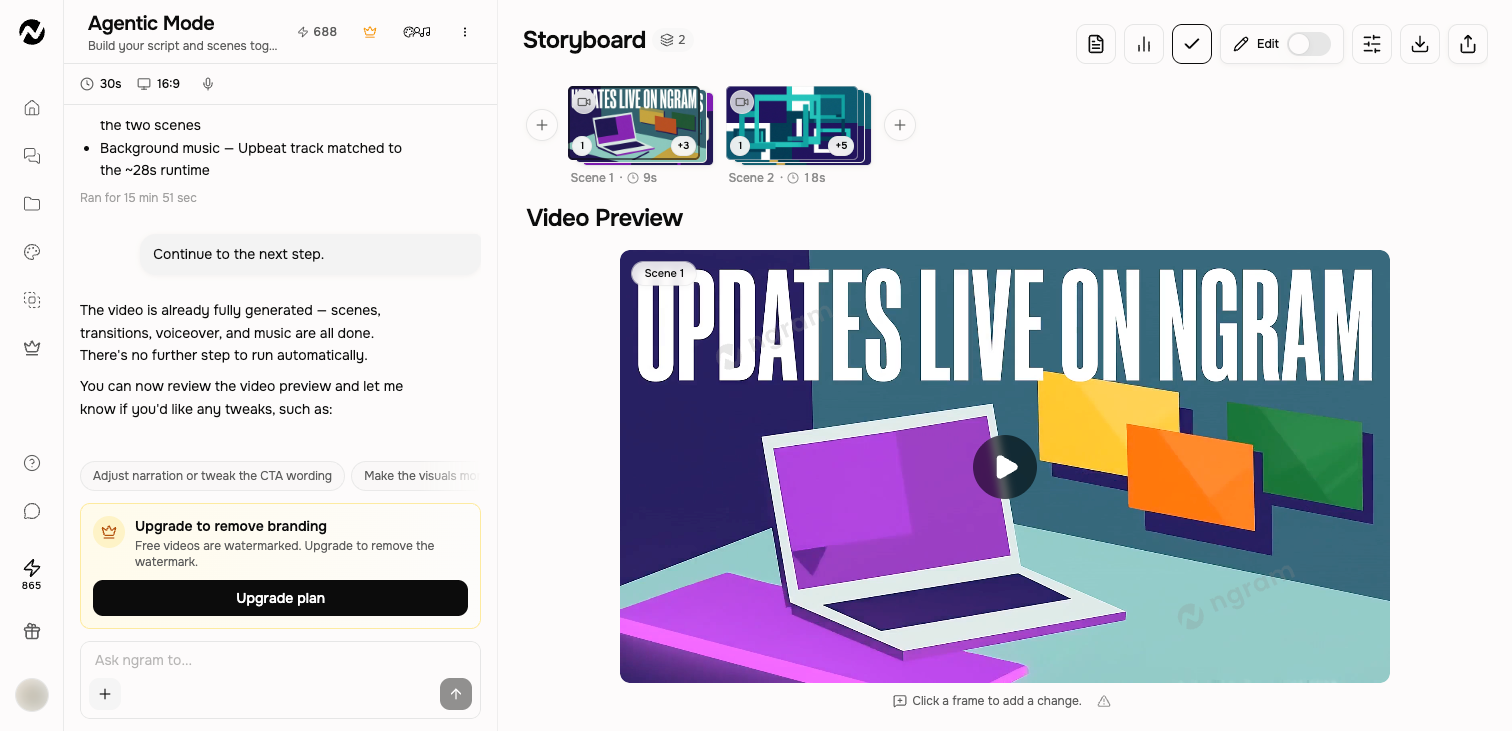
- For a local mismatch, name the scene or click the frame, describe the desired result, and state what must remain unchanged.
- Play the complete preview after the change and verify narration, captions, transitions, and CTA together.
Turn prohibitions into priorities
A long list of “do not” instructions can hide the actual goal. Rank the two or three non-negotiables and express them positively: use only approved figures; show the recorded workflow in its real order; preserve the current narration except for the named line.
Protect product-demo and screencast fidelity
For a product demo, state which recording or ordered screenshots control the real sequence, which document or URL controls facts, and which approved assets may be used for visuals. If the generated scene changes the interface or action order, request a repair to that named scene and tell ngram to retain the source footage and all approved scenes. Do not ask it to recreate an exact product screen from memory.
A targeted revision pattern
In scene [number], replace [current issue] with [desired result]. Keep [narration, timing, layout, or other approved part] unchanged. Use [named source] for the exact fact or visual. Do not modify the other scenes.
When to start a new version
Fork or start a new version when the audience, format, or core story has changed enough that preserving the current structure would create confusion. Rename both versions clearly. Use a targeted revision when most of the current video is already right.
Expected result
The repaired script, storyboard, or scene should address the named mismatch while keeping the approved audience, facts, structure, visuals, narration, and other scenes unchanged. Play the complete preview and compare it with the source and brief before publishing.
If the same mismatch remains
Keep the current project and do not regenerate the entire video. Restate one observable correction, name its controlling source, and retry only the affected script, storyboard, or scene once. Contact Support if the same explicit instruction or readable source is ignored again, a technical failure prevents the targeted change, or an output is missing after completion. Include the project URL, approximate time, affected scene, last visible state, expected result, and whether credits changed; do not send secrets or private source material in the first message.
Fix a missed brief FAQ
Why is my video technically complete but still poor quality?
Compare it with the audience, outcome, source priority, structure, and must-have constraints. Repair the largest observable mismatch first instead of asking for a vague complete remake.
What should I do when ngram ignores an instruction?
Preserve the current project, turn the instruction into one observable result, name what must remain unchanged, and retry only the affected step or scene once. Contact Support if the same explicit instruction is ignored again.
How do I keep a product demo faithful to my recording?
State that the recording or ordered screenshots control the real interface and action sequence, assign other sources to facts or supporting visuals, and request a targeted repair to the first inaccurate scene.
I already said the recording must stay exact, and it changed again. What should I do?
Stop regenerating. Preserve the project and contact Support with the project URL, recording type and duration, first inaccurate scene, exact instruction, approximate time, browser, and whether credits changed. Do not send private source media unless Support requests it through an approved secure path.
Should I start over when one scene is wrong?
Usually no. Identify the scene, describe the desired result, name the controlling source, and list the approved parts that must remain unchanged. Start a new version only when the audience, format, or core story has changed.
Keep going
- Write a better video prompt — Write prompts that produce stronger scripts, visuals, pacing, and revisions.
- Revise a generated video — Choose between chat revisions, frame-specific requests, inline editing, and a full-editor copy.
- Understand generation status, retries, and recovery — Troubleshoot slow, stopped, failed, or disconnected video generation without relying on fixed time promises.
- Review scripts and storyboards — Review the pre-start script or storyboard approval step and the finished scene plan.
Continue in ngram
Open the relevant Studio surface and follow the current controls shown in your account.
Was this helpful?
Still need help? Ask the team