Choose a voice and avatar
Preview a narration voice, choose the language and avatar behavior, or use custom identity assets when your plan includes them.
Written By Rishikesh from ngram
Last updated 9 days ago
Read before this
Choose a narrator in V2
On V2 Home, open Narrator to review the available narration and avatar choices before creating the video. Auto lets ngram choose narration where offered; No avatar leaves out a presenter.
- Open Home and choose V2.
- Open Narrator.
- Select an available voice or keep Auto, and review the avatar choice.
- Choose Select to confirm the choices.
- Confirm the choices in the composer before creating the video.
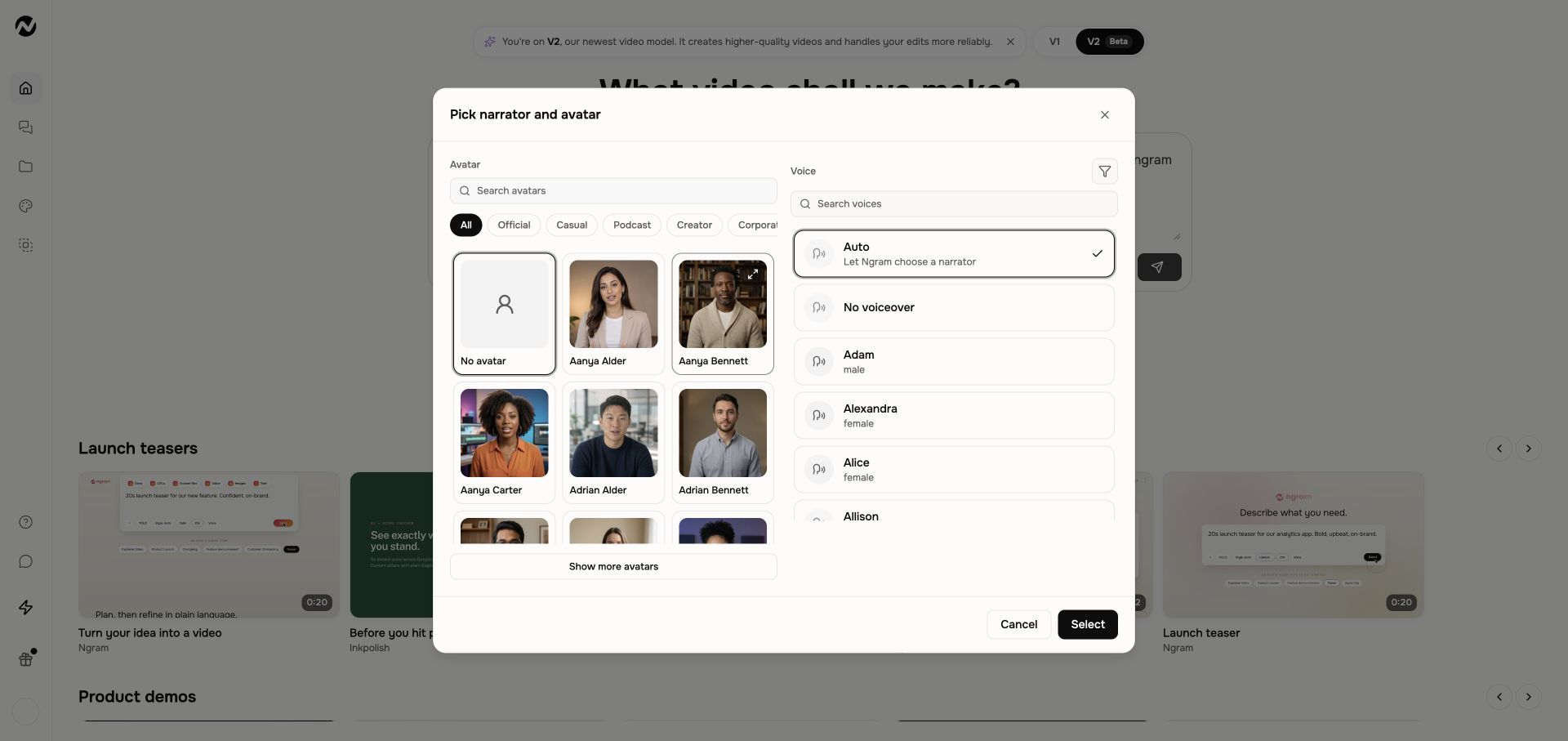
Review pronunciation and narration in the result. Ask for a correction in chat if needed. The V1 custom-identity and multi-speaker controls below apply only where that workflow offers them.
V1 workflow
The instructions and screenshots below apply to V1 projects. In V2, use the workflow above; the same direct editing controls may not be available.
Use this when
Use this guide when you need to choose or change a narration voice, language, accent, pronunciation, avatar, or two-speaker setup. It also helps when the finished result uses the wrong voice or language, or a voice preview will not play.
This guide does not translate an existing uploaded video or repair a missing audio track. Use the translation guide for localized source media and the music, voiceover, and captions guide when expected audio is absent.
Before you start
Decide the spoken language, regional delivery or accent, tone, and whether the video needs an on-screen presenter. Prepare approved pronunciations for names and specialist terms. Use only custom voice recordings and face images you own or have explicit permission to process.
Choose narration
Open the Voice control under the Home prompt to browse and preview available voices. Compare the live choices by spoken language, regional delivery or accent, tone, pacing, and audience—not only the voice name. For a difficult name or term, expand the pronunciation field, enter the intended pronunciation, and play its preview before generation. The catalog changes over time, so use the voices visible in your account.
Use an avatar
Avatar video types add a visible presenter. Select the avatar and voice together so the delivery suits the presenter and content. Some workflows also support a screencast with an avatar.
Create a two-speaker conversation
When the conversation or multi-speaker option is visible, configure exactly two speakers and assign a voice to each. Avatar versions also require two presenter choices. Review speaker ownership throughout the script so lines, voices, and faces do not swap between scenes.
Custom identity assets
- Premium includes one custom voice and one custom face/avatar slot.
- Ultimate includes unlimited custom voices and faces/avatars under the current plan configuration.
- Free and Basic do not include custom identity creation.
- Use only recordings and photos you own or have explicit permission to process.
Credits and availability
Voice and avatar costs can depend on the plan, generated duration, and current configuration. Review the live estimate or Usage page rather than relying on an old fixed credits-per-second claim.
Choose and verify the voice
- Open Home and add the prompt and approved sources.
- Choose the relevant creation setting and leave unrelated controls at their defaults.
- Open Voice, preview the chosen voice, and review its language and delivery alongside the mode, duration, aspect ratio, models, and displayed credit estimate.
- Create a representative first version and replay the opening and a terminology-heavy section to verify the selected voice, language, accent, pacing, pronunciation, and presenter.
Expected result
The generated narration uses the selected voice and spoken language, approved terms are pronounced as previewed, and any avatar or second speaker keeps the intended voice and lines. The finished preview should match the setup you reviewed before generation.
If the voice, accent, or language is wrong
- Preserve the current render and record the first affected scene or timestamp. Confirm whether the problem is the selected voice, spoken language, pronunciation, or speaker assignment.
- Preview the intended voice or pronunciation again. For an existing video, ask chat for the exact voice or language change; for one wording change, use Edit → Script.
- After reviewing the displayed credit estimate, apply the change once to the smallest useful scope and replay the affected scene.
- If the same wrong voice, language, pronunciation, or speaker assignment remains, do not regenerate again; contact Support.
Contact Support after one failed voice correction
Stop after one targeted correction when previews fail, the Voice control is unavailable unexpectedly, or the finished video still uses the wrong voice, language, pronunciation, or speaker. Send Support the project URL, approximate time, affected scene and timestamp, selected and actual language or voice, visible error, browser, whether you retried once, and whether Usage shows a credit change.
Voice and language FAQ
In V1, how do I choose a specific language or accent?
Open Voice under the Home prompt and preview the live choices for the spoken language and regional delivery you need. Choose by what you hear, then verify a terminology-heavy section in the first generated version.
In V1, can I change the voice or language after the video is generated?
Yes. Ask chat for the exact new voice or spoken language. Preserve the current render first, review the displayed credit estimate, and verify the affected scenes after the change.
In V1, how do I fix a name that is pronounced incorrectly?
In voice setup, expand the pronunciation field, enter the intended pronunciation, and play the preview. For an existing video, ask chat to fix the pronunciation or update the affected scene through Edit → Script.
In V1, why does my finished video use the wrong voice?
Confirm the selected voice and whether a multi-speaker script assigned the line to the correct speaker. Apply one smallest-scope correction and replay the affected scene. Contact Support if the wrong voice remains.
In V1, why won’t a voice preview play?
Confirm browser audio is enabled and try one other visible voice preview to separate a single preview problem from a wider issue. If previews still do not play, stop and contact Support with the browser, time, and visible error.
Keep going
- Create and manage a custom voice — Create, preview, use, and remove custom voice models with current plan limits.
- Create and manage a custom face — Create, use, and remove custom presenter faces with current plan limits.
- Choose a video type — Choose between motion graphics, avatar, screencast, and other video types visible in Studio.
- Adjust music, voiceover, captions, and sound — Change captions, background music, narration, and sound-effect settings.
- Translate, dub, or transcribe existing media — Choose a localized video, replacement voice track, or transcript workflow.
- Use Help and contact Support — Choose the right help channel and include useful, privacy-safe diagnostic details.
Continue in ngram
Open the relevant Studio surface and follow the current controls shown in your account.
Was this helpful?
Still need help? Ask the team