Use the full video editor
Create a separate editor copy when you need detailed manual control over the canvas, media, pages, effects, and timeline.
Written By Anish Muppalaneni
Last updated 9 days ago
Read before this
Choose the matching experience
This guide describes the V1 workflow and its available controls. For V2 (Beta), start from Home, review the plan, and request revisions through chat or Make changes. Do not assume the V1 controls shown here are available in V2.
Before you start
The full editor is designed for desktop use. You can open a finished owned project, or start a blank project from /app/editor or /app/editor/new; the blank canvas lets you add text or upload image/video media before asking the agent for help. Save or fork valuable work before a broad rewrite or a destructive timeline change.
Open an editor project
- Open a finished agentic conversation, or navigate to /app/editor to start with a blank canvas.
- For a finished conversation, open Edit video. A blank project opens directly in the editor.
- Choose Open in editor when prompted.
- In a blank project, select Text or Uploads to create the first scene; otherwise confirm creation of the separate editor copy.
The copy is independent
The editor copy does not automatically receive later changes from the agentic conversation. Decide which version is authoritative before you continue editing or publishing. Name the copy clearly so it is easy to identify in Projects.
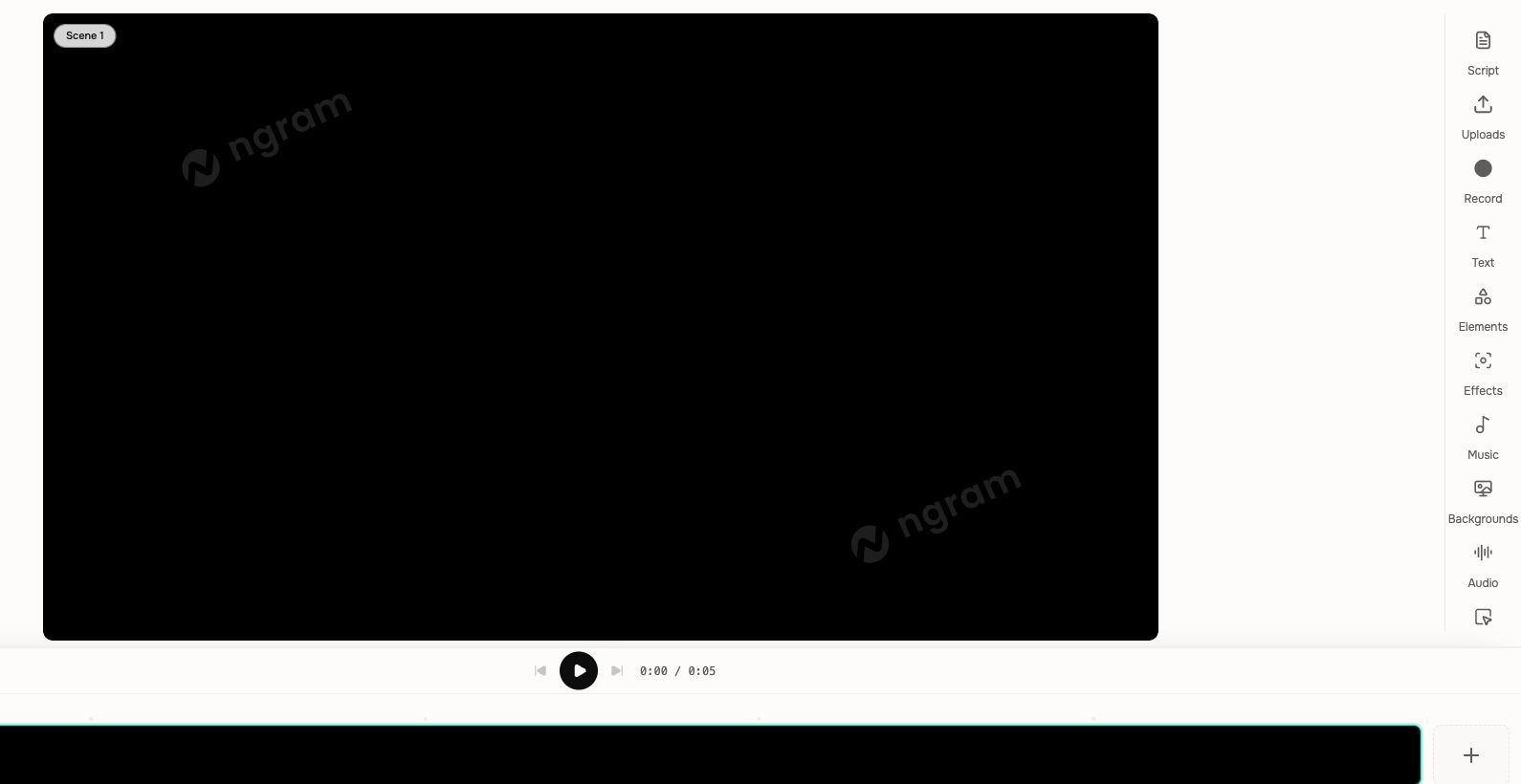
Main editor areas
- Canvas and selection controls
- Record and Uploads
- Text, Elements, Effects, Music, and Backgrounds
- Page controls and layer ordering
- Timeline playback, selection, resizing, and zoom
- Save, Share, and export controls
Choose the full editor when
Use it for detailed layout work, additional media layers, precise timing, manual design, or a standalone deliverable that no longer needs to follow the agentic conversation. Stay inline for small direct changes to the conversation's current video.
Keep going
- Edit inside an agentic conversation — Edit scene content, layers, media, audio, interactivity, and timing inside a conversation.
- Work with the timeline — Use the current multi-track video timelines instead of the obsolete fixed three-row model.
- Download and export a video — Download an MP4 from an agentic video or editor project at the current plan resolution.
Continue in ngram
Open the relevant Studio surface and follow the current controls shown in your account.
Was this helpful?
Still need help? Ask the team