What is ngram?
ngram is an AI video workspace for turning a prompt, source material, or recording into a script, storyboard, narrated video, and editable project.
Written By Rishikesh from ngram
Last updated 9 days ago
Read before this
No earlier help article is required. You can start here.
Choose the creation experience
V2 (Beta) is the default for new work unless you have chosen V1. In V2, start with a brief, review Script and Production details, approve the plan, then watch and revise the result in the same conversation. V1 remains available for existing work and its established editing tools.
The sections below introduce the wider ngram product. Availability and controls differ between V1, V2, and focused tools; use the guide for the experience you have opened.
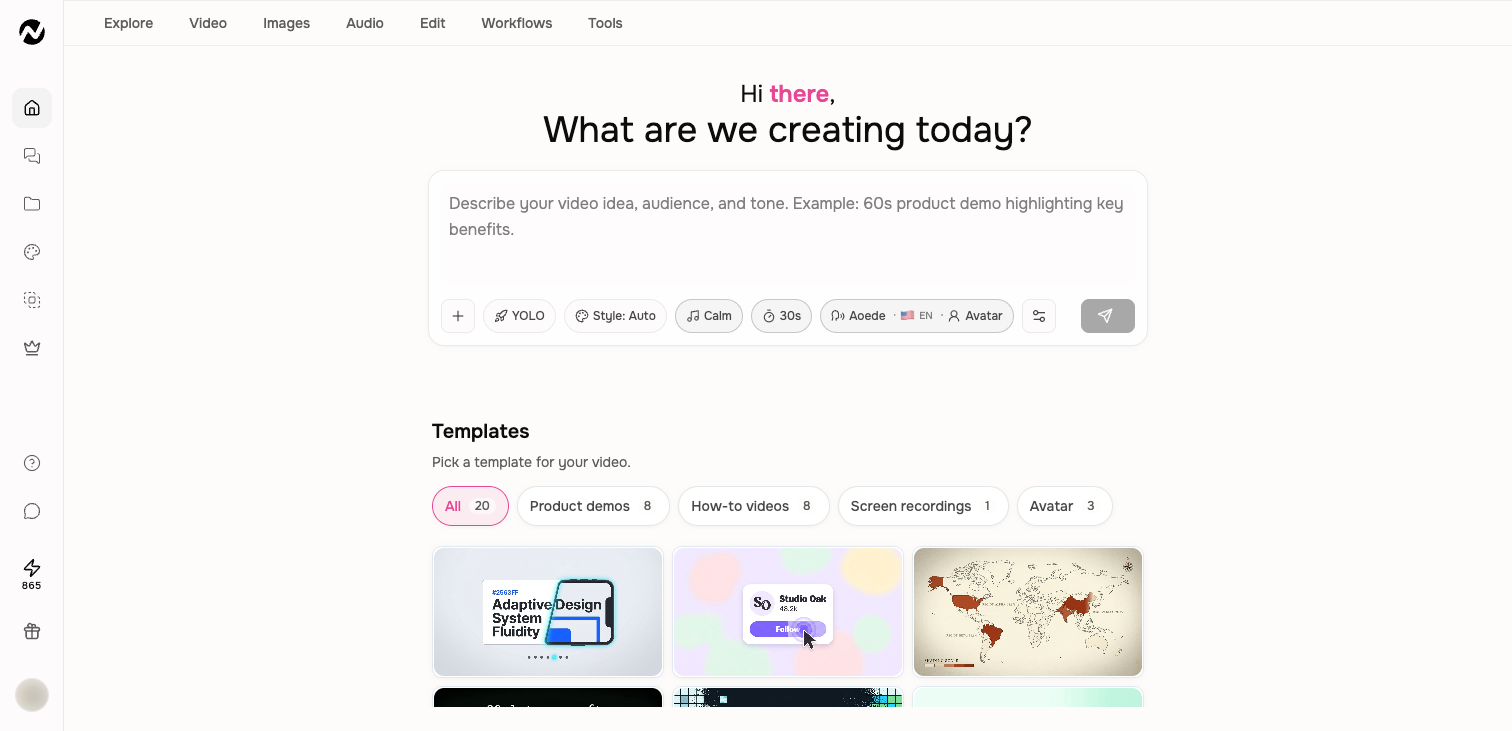
What you can create
Start with an idea, script, URL, document, image, audio clip, or screen recording. ngram plans the story, creates scenes, adds narration and music when requested, and gives you a finished video you can revise.
The exact production path depends on the video type you choose. A motion-graphics explainer, an avatar video, and a polished screencast do not use the same scene structure, so the workspace adapts to the job.
The main Studio surfaces
- Home: prompt-first creation, templates, recent work, and creation settings.
- Agentic workspace: chat, script and scene review, preview, revisions, sharing, and inline editing.
- Projects: agent conversations and one-shot Tool results in one place.
- Tools: focused generators and media-editing utilities.
- Image Lab and Clip Studio: dedicated image and short AI-video workspaces.
- Full editor: a separate, timeline-based editing copy for detailed manual changes.
How work is saved
Creation runs are durable. You can leave a conversation and reopen it from Recents or Projects. Finished agent conversations remain connected to their script, storyboard, revisions, and published video.
One-shot Tool outputs appear under Tool results. Opening a finished agentic video in the full editor creates a separate editor copy; later conversation changes do not automatically update that copy.
Where to begin
- Open Home and describe the video, audience, and goal in plain language.
- Attach source material when factual accuracy or product visuals matter.
- Choose V2 (Beta) to review the plan before production, or V1 to use the previous creation experience.
- Review the finished video and request targeted changes in chat before opening the full editor.
If the result is not available
If a control or result does not match this guide, confirm that you are in the intended account or team and reopen the current conversation from Projects. Use the closest visible option, then check Help or contact Support when the difference blocks the task.
Keep going
- Create your first video — Create a first ngram video from the current Home and agentic workflow.
- Understand the agentic workspace — Learn the current chat, storyboard, preview, editing, download, and sharing controls.
- Use the Tools library — Search and use the current Tools library and understand where Tool results are saved.
Continue in ngram
Open the relevant Studio surface and follow the current controls shown in your account.
Was this helpful?
Still need help? Ask the team