Manage your account and preferences
Review profile and sign-in information, configure job behavior and notification channels, move between settings areas, or schedule account deletion.
Written By Rishikesh from ngram
Last updated 9 days ago
Read before this
No earlier help article is required. You can start here.
Choose the default video experience
Default experience controls where new videos start. V2 – Pro (Beta) is the new creation experience; V1 – YOLO is the previous experience. These labels are not subscription-plan choices.
- Open Account and teams from the sidebar.
- Choose Account & Settings, then Preferences.
- Under Default experience, select V2 – Pro or V1 – YOLO.
- Return to Home and check the selected experience before starting a new video.
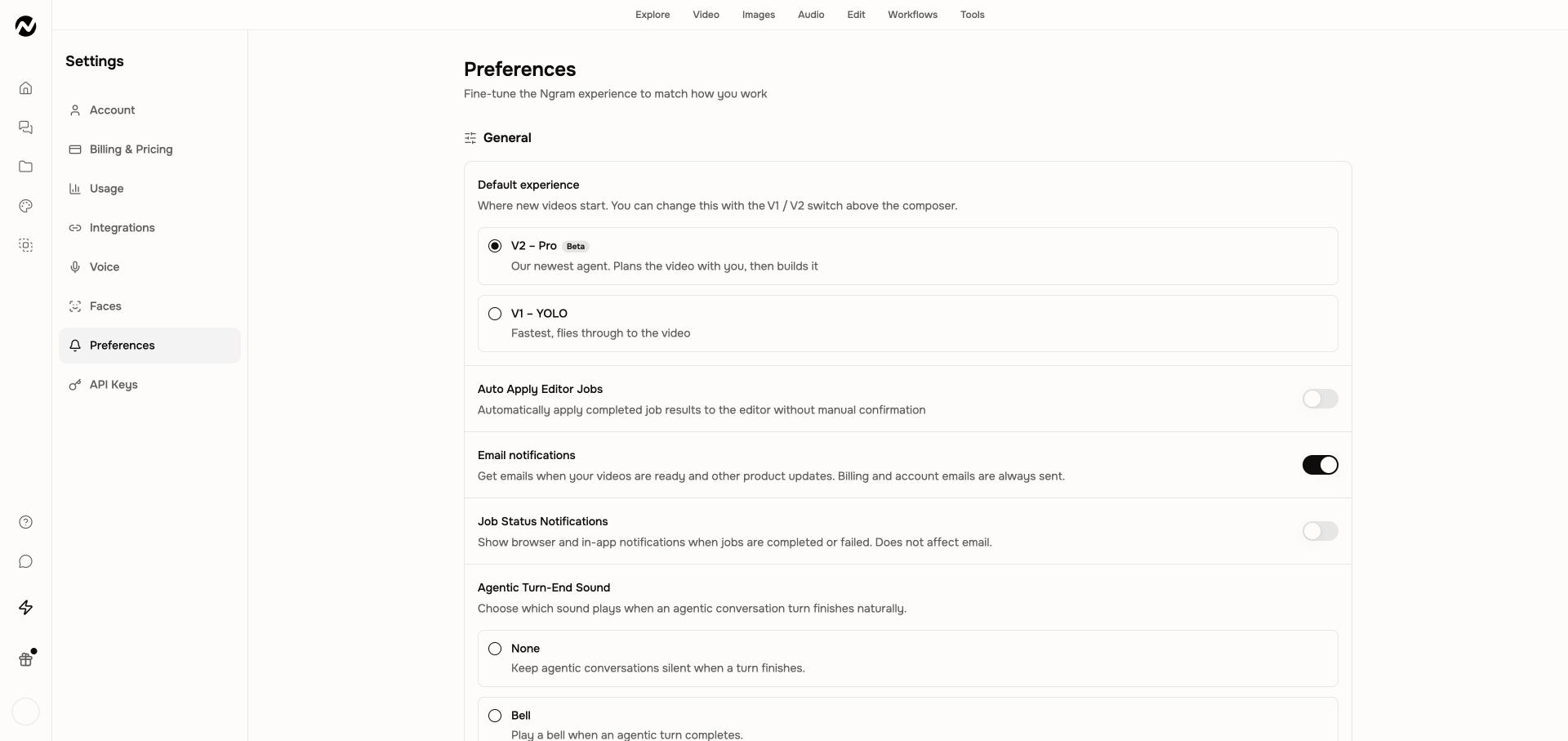
The V1 / V2 switch on Home also saves this preference. Existing conversations keep their original experience. Tool and template links can still open a V1 workflow.
Other account preferences
Use this guide when
Use this guide to find the correct Settings area for profile preferences, billing, usage, integrations, custom identity assets, or account deletion. For subscriptions, invoices, and receipts, continue to the dedicated billing guide rather than changing unrelated profile settings.
Account information
Account shows the profile photo, display name, email, authentication provider, confirmation state, account creation date, and last sign-in. Some identity fields are controlled by the sign-in provider rather than an inline ngram editor.
Preferences
- Auto Apply Editor Jobs: apply completed background editing jobs automatically.
- Email notifications: send video-ready messages and product updates. You can turn these off; billing and account emails are always sent.
- Job Status Notifications: show browser and in-app messages when jobs complete or fail. This setting does not affect email.
- Preferences also contains the current turn-end sound and other account-level behavior controls.
- Eligible paid users can manage auto top-up from the billing-related preference shown by Studio.
Other settings areas
Use Billing & Pricing for subscriptions, invoices, and receipts; Usage for credit events; Integrations for connected services; Voice and Faces for custom identity assets; and team settings for the active team. Every signed-in user can open API Keys to create, rotate, and revoke credentials for the public API and supported external automations.
Delete the account
Account deletion hides the account immediately and schedules permanent erasure after 30 days under the current flow. Review ownership of teams, published projects, shared assets, and billing before deleting. Follow the confirmation dialog carefully because this affects stored work and access.
A safe first pass
- Open the relevant Settings, Billing, Usage, or Earn credits page.
- Confirm the active account or team and read the current plan or program terms.
- Make one intended change or locate the exact activity record.
- Verify the resulting status, balance, renewal, claim, or preference before closing the page.
If a settings change does not appear
Refresh the same Settings page once and confirm the active account or team. Do not repeat a purchase or destructive account action. Contact Support when the confirmed state still does not match, including the page name, approximate time, visible status, and browser without sending credentials or payment details.
Account and settings FAQ
Where do I manage my subscription or download an invoice?
Open Account & Settings → Billing & Pricing. Use the subscription controls for plan changes and Invoices for receipts, PDF downloads, and billing history.
Why did a settings change not appear?
Confirm the active account or team and refresh the same Settings page once. If the state still does not match, contact Support with the page, time, visible status, and browser.
Keep going
- Understand plans and pricing — Review current Free, Basic, Premium, Ultimate, and Enterprise plan behavior.
- Review your usage history — Use the current Usage page to understand credit activity and investigate unexpected charges.
- Create and manage a custom voice — Create, preview, use, and remove custom voice models with current plan limits.
- Create and manage a custom face — Create, use, and remove custom presenter faces with current plan limits.
- Manage subscriptions, invoices, and receipts — Cancel or change a plan, manage a paused subscription, and download billing records.
- Request a billing review or refund — Prepare a billing or credit-review request without assuming a refund is guaranteed.
Continue in ngram
Open the relevant Studio surface and follow the current controls shown in your account.
Was this helpful?
Still need help? Ask the team